Chapter 4: Data Grid & Editing
Info: This chapter explains inline cell editing in the data grid, the cell inspector panel and smart filtering/sorting behavior.
In this chapter:
- 4.1 Inline Cell Editing
- 4.2 Cell Inspector Panel
- 4.3 Smart Filtering & Sorting
- 4.4 Import and export
- Related Topics
4.1 Inline Cell Editing
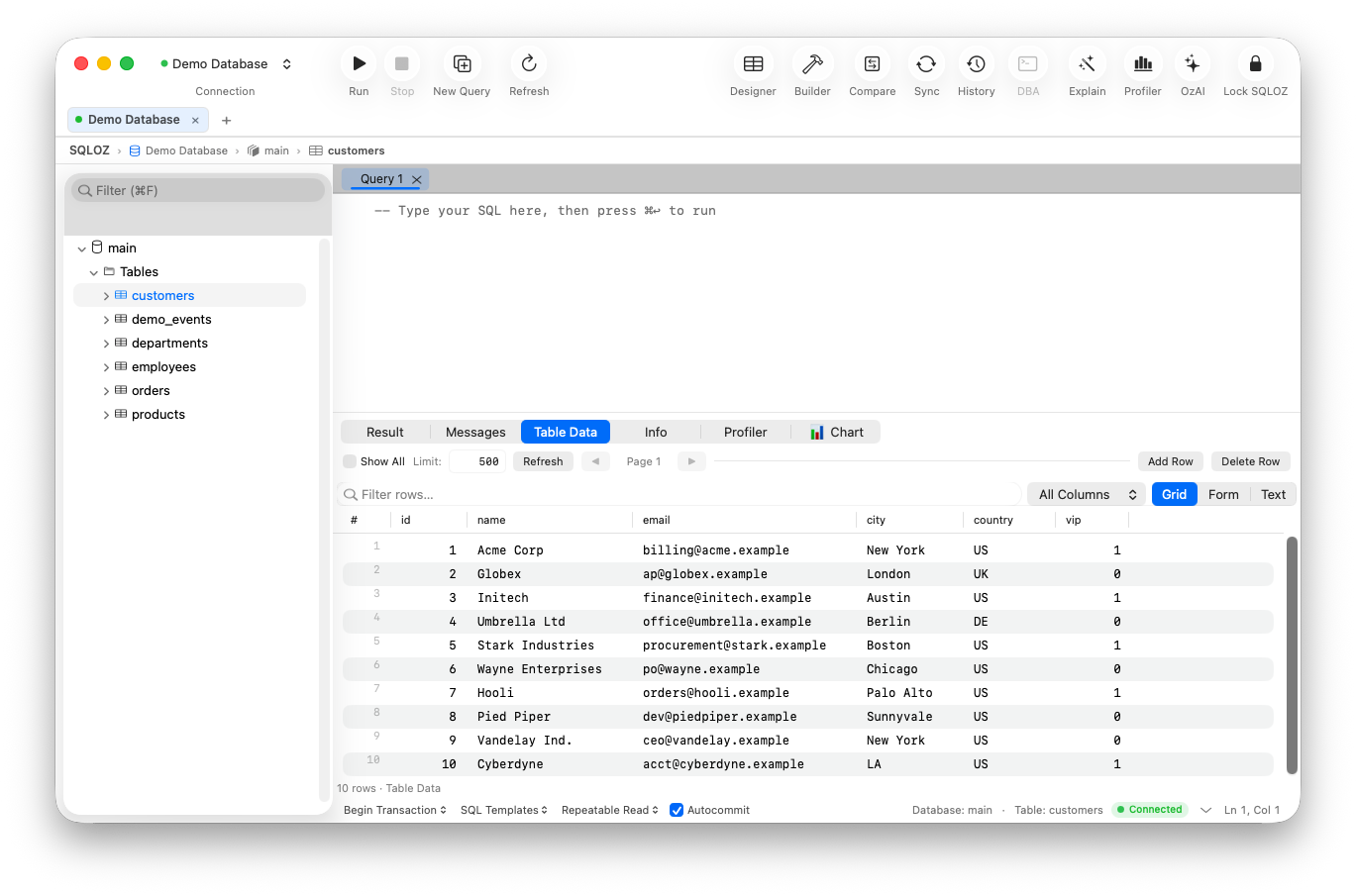
There is no need to write an UPDATE users SET name = 'Ali' WHERE id = 42 query for a simple data correction. You can edit cells inline directly in the data grid.
- Double-click a cell in the data grid (or select it and press
Enter). - Enter the new value; use
Tabto move to the next column. - Edited rows are marked yellow.
- Confirm the edit to commit the change, or press
Escto discard it.
Warning: For inline editing to work, the table must have a Primary Key or a Unique field. SQLOZ uses these to confirm that the correct row is being changed.
4.2 Cell Inspector Panel
A grid cell can contain large JSON objects, long text or binary data (BLOB), which is hard to read in a narrow cell. The cell inspector panel solves this.
- Select the cell and press
Space(or right-click and choose Inspect Cell Value). - A collapsible Cell Inspector panel opens on the right side of the screen.
- The panel tabs are:
- Text: Plain-text view.
- Pretty JSON: Formats JSON data as a colored, indented, readable tree.
- Image / Hex: If the data is an image (PNG, JPEG, WebP) it shows a preview; if it is binary it displays an addressed Hex Dump.
- Copy Value copies the cell content to the clipboard.
4.3 Smart Filtering & Sorting
The data grid provides the following behaviors to make working with large result sets comfortable.
- Natural numeric sorting: Clicking a column header sorts numeric data mathematically (
1, 2, 10, 100), not alphabetically. - NULL constant: Regardless of sort direction,
NULLvalues stay at the bottom of the table, so they do not block the data you are looking for. - Quick filter box: Type text into the filter box above the grid to search all columns instantly.
4.4 Import and export
From a result grid’s context menu you can export selected rows or the full result. Selection export is available for CSV and JSON; full-result export is available as CSV, JSON, SQL, HTML, XML, XLSX and Excel XML 2003. CSV export lets you choose the delimiter, text enclosure, line ending, whether to include column names, whether to quote every field and which columns to include. JSON export preserves the original values; formatted JSON display in the inspector does not change the exported data.
To import data, open the table’s Import action and choose a CSV, JSON, XML or XLSX file. The import wizard previews the source, maps source columns to target columns, optionally creates a missing table, and supports abort, keep-existing or replace conflict handling. It can continue after row-level errors and reports the failures. CSV imports can use incremental checkpoints when a suitable marker column is selected; incremental mode stops on the first error so the checkpoint remains unambiguous.
Large imports and exports use bounded/file-backed processing. A read result is required for result export; if no readable result is available, SQLOZ leaves the export blocked and explains why. Use View → Toggle Form or Cmd + L to switch result presentation modes.