Chapter 10: Security, Backup & Disaster Recovery
Info: This chapter explains the opaque-token safety gate against destructive operations, automatic backups in risky areas and the biometric application lock.
In this chapter:
- 10.1 Opaque-Token Safety Gate
- 10.2 Automatic Safety Backup
- 10.3 Biometric Application Lock
- Related Topics
10.1 Opaque-Token Safety Gate
When a risky or destructive operation is attempted, SQLOZ applies the safety policy for that operation. The exact gate and backup path depend on the operation and connected vendor.
- When a destructive query is detected, a red Destructive Action Warning dialog opens.
- The dialog clearly shows the affected table and the estimated number of rows to be deleted.
- After confirmation, the system generates a single-use ApprovalToken. Only requests carrying this token are executed.
Important: The approval token is single-use and scoped to the approved operation. An approval failure stops execution; the application does not silently continue without the required token.
10.2 Automatic Safety Backup
Where the operation’s safety policy requires a backup, SQLOZ creates and verifies a safety backup before proceeding. Backup availability is a precondition for those operations; a missing, invalid, or failed backup blocks the mutation.
The policy covers these areas:
- Schema synchronization.
- Data synchronization.
- Database transfer.
- Table cloning.
- Deleting a column/table from the schema designer.
- Bulk row deletion in the grid.
- Table maintenance and optimization operations.
The backup is an artifact for recovery and must itself be checked before use. It does not guarantee that every operation can be rolled back automatically or that a restore is immediate; review the operation receipt and recovery instructions.
Tip: This feature works together with the synchronization processes in Chapter 6 and Chapter 7.
10.3 Biometric Application Lock
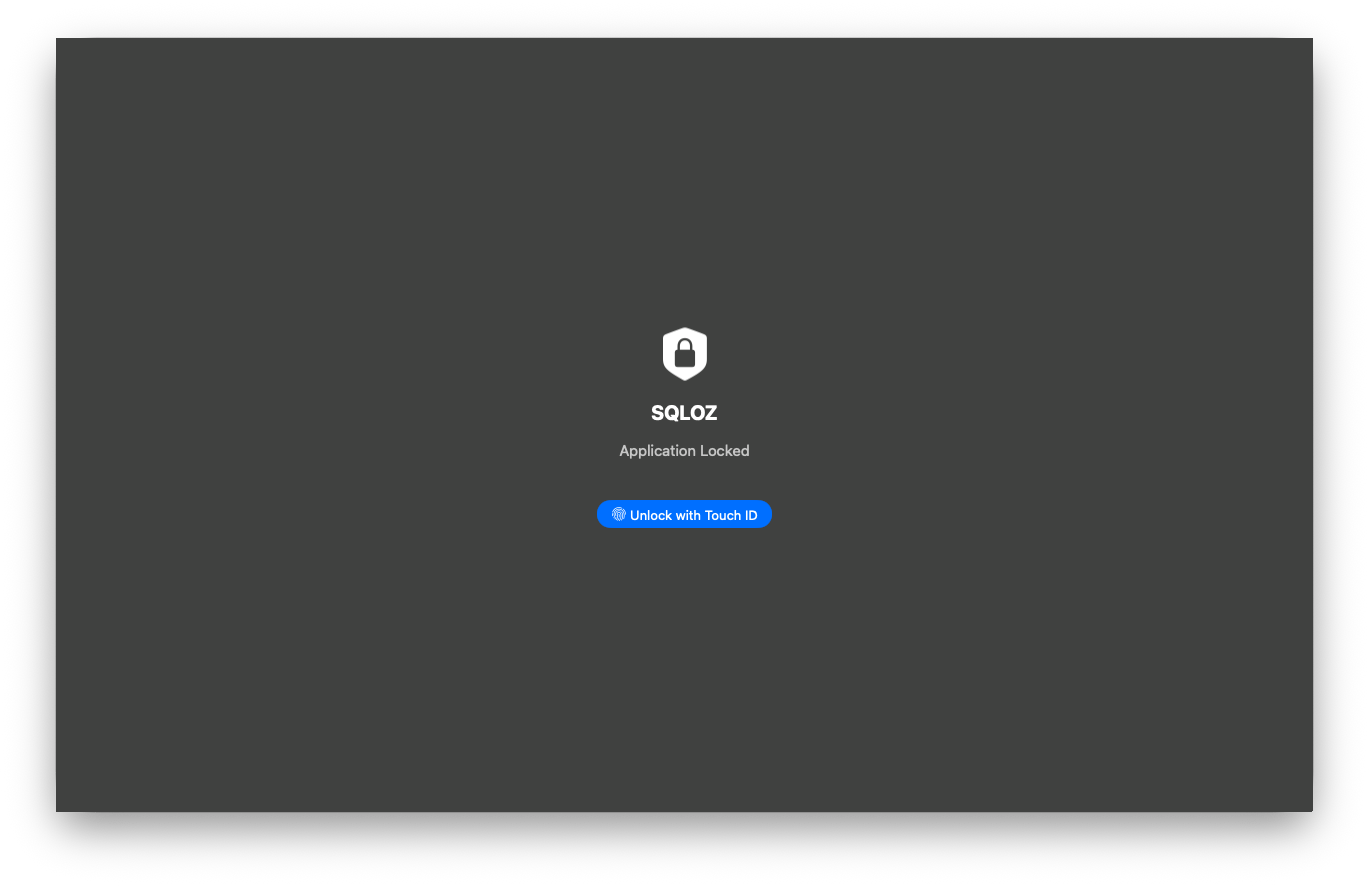
You can lock the application so your screen does not remain open when you leave your desk.
- Use the
Cmd + Shift + Lshortcut or wait for the idle timeout to expire. - To unlock, scan your Touch ID fingerprint or enter your Mac password.
SQLOZ can lock on demand, after idle timeout, when the app switch occurs, when the Mac sleeps, or when the system screen locks, depending on Settings. Unlock requires Touch ID or the Mac’s device-owner authentication; if authentication is unavailable, the lock remains in place. The lock covers every visible SQLOZ window.