Chapter 1: Getting Started
Info: In this chapter you will learn about the environment SQLOZ requires, the first setup, creating your first connection, the interface layout, multilingual use, the appearance mode and the core engines the application is built on.
In this chapter:
- 1.1 Requirements
- 1.2 First Setup and Creating a Connection
- 1.3 Interface and Screen Layout
- 1.4 Multilingual Use
- 1.5 Appearance (Light / Dark / Auto)
- 1.6 Core Engines (Oz Suite)
- Related Topics
1.1 Requirements
SQLOZ is developed natively in Swift and AppKit to deliver a responsive macOS database workspace. No additional library or dependency needs to be installed.
- Operating system: macOS (including Apple Silicon support).
- Installation: One-click install from the SQLOZ Mac App Store listing.
- Download and Pro access: SQLOZ is free to download. Optional Pro subscriptions, the app-managed 7-day evaluation, and current offer availability are described in Chapter 12.
- Additional dependencies: None. All drivers and engines are embedded in the application.
Tip: Because the application is built on native (AppKit) code, it maintains high memory efficiency and a fluid interface even with large query sets and tables with millions of rows.
1.2 First Setup and Creating a Connection
The steps below show how to create your first database connection when you open the application for the first time.
- Install the application. Install and open SQLOZ from the Mac App Store.
- Add a new connection. Press
Cmd + Nor use the File → New Connection… menu. - Enter the connection details:
- Connection Name: Enter a descriptive name (e.g.
Company Main E-Commerce Prod). - Database Engine: Choose MySQL, PostgreSQL or SQLite. MariaDB uses the MySQL profile family and is identified after connection; it is not a separate picker item.
- Host, Port, User and Password: Fill in the server details.
- Connection Name: Enter a descriptive name (e.g.
- Set the environment color (recommended). Choose the color tag of your live environment from the ready color badges in the General tab (e.g. 🔴 Prod/Red for production). SQLOZ tints the left Object Browser and the connection tab with the selected color, making the environment obvious at all times.
- Test and save the connection. After seeing the “Connection Successful” confirmation, save the connection.
Tip: Environment color tags reduce the risk of accidentally mixing live and test connection tabs. See Chapter 2: Connections & Tunnels for details.
1.3 Interface and Screen Layout
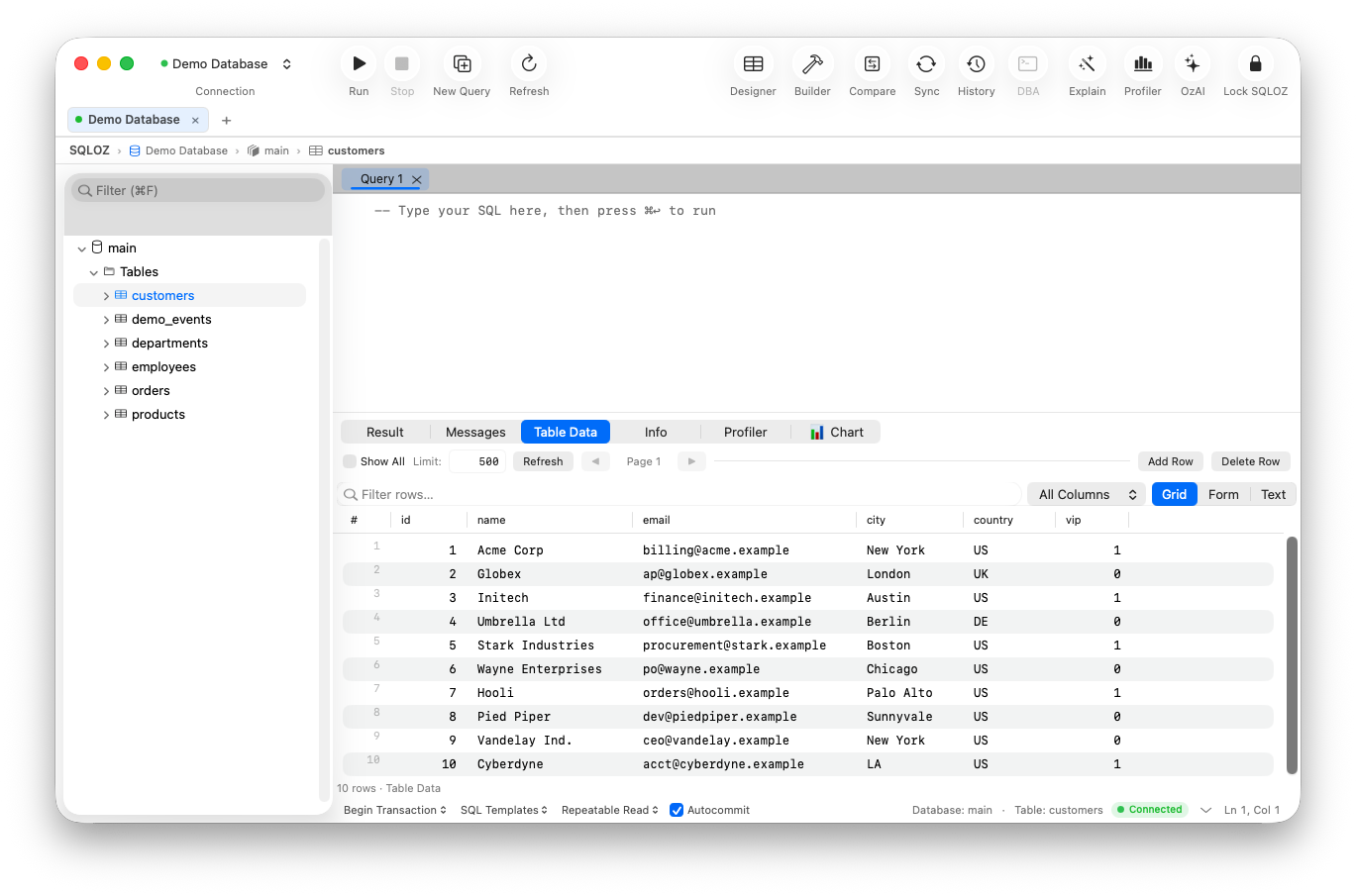
The SQLOZ interface is designed according to Apple’s Human Interface Guidelines (HIG). The screen consists of three main areas.
- Left Object Browser (Sidebar): Displays databases, tables, views, procedures and triggers on the server in a tree structure.
- Tab Bar: Multiple editor tabs, schema designers and DBA panels can be kept open at the same time.
- Status Bar: Shows real-time information such as server type, character set, query duration and memory state.
The main toolbar provides Run, Stop, New Connection, New Query, Refresh, Explain, Profile, Schema Designer, Query Builder, Compare, Data Sync, History, DBA, OzLock, OzAI and ScreenLock. Result export is available from the result grid’s context menu after a result is present.
1.4 Multilingual Use
SQLOZ offers interface language support and lets you switch between 23 languages. The language preference affects all menus, dialogs, error messages and tooltip texts, with the exception of technical terms.
- Open the Preferences window. Press
Cmd + ,or use the SQLOZ → Preferences menu. - In the General tab, select your preferred language from the Language menu (e.g. English, Deutsch, Türkçe, Azərbaycan dili, 日本語).
- You do not need to restart the application; the interface switches to the selected language immediately.
Warning: The language selection does not affect technical terms that are intentionally left in English (such as SQL keywords and file format names).
1.5 Appearance (Light / Dark / Auto)
SQLOZ does not ship a custom theme system; it follows macOS’s own appearance management. The picker in Settings → Appearance mirrors the System Settings Auto/Light/Dark selector (three cards with miniature window previews).
- Open the Appearance tab with
Cmd + ,. - Click one of the three options:
- System (Auto): Follows macOS’s own Light/Dark choice (default). When the system switches to Dark Mode, the app follows automatically.
- Light: Keeps the entire interface light in all conditions.
- Dark: Keeps the entire interface dark in all conditions.
- The choice applies immediately and is kept on next launch.
Tip: If you work late at night, Dark reduces eye strain; whichever mode you pick, you can still change the system appearance any time from the macOS Control Center.
1.5.1 Interface Density (Relaxed / Compact)
The UI Density option on the same Appearance tab controls how much information fits on screen at once - a relaxed start for new users, a denser workspace for experienced DBAs.
- Go to Settings → Appearance → UI Density.
- Choose one of the two modes:
- Relaxed: Default. The object browser, result grid and DBA tables use generous row heights for a more spacious look.
- Compact: Fits more rows into the same screen - ideal for DBAs who scan long tables.
- The choice applies immediately; open windows pick up the saved setting on the next refresh.
Tip: Density is independent of the appearance mode: you can combine Compact density with Dark mode.
1.5.2 Command Palette (Cmd + Shift + P)
Every tool and action in SQLOZ can be reached from one searchable place instead of hunting through toolbars and menus. The Command Palette (a pattern familiar to VS Code users) puts all commands into a single searchable list.
- Press
Cmd + Shift + P. - Start typing a command name (e.g.
schema,ozai,kill,explain). - Click the command you want, or select it with the arrow keys and press
Return.
Some of the commands reachable from the palette:
- Run / Cancel - query execution and cancellation
- New Query / New Connection - workspace creation
- DBA Panel, Schema Compare, Data Sync, Query History - server and schema tools
- Schema Designer, Query Builder, OzAI, OzExplain, OzLockTree, and OzOSC - Oz Suite tools. OzOSC provides read-only plan review plus guarded execution and recovery controls for supported MySQL/MariaDB tables; every destructive step remains gated by verified safety and recovery evidence.
- Data Search, Generate Test Data, Table Diagnostics, Table Maintenance, Redundant Index - table tools
- Copy Table, Copy Database, Transfer Database - migration and copying
- Operation Center, Scheduled Jobs, Lock App - administration and security. See Chapter 23 for distribution limits.
Tip: To declutter the toolbar, remove rarely used tools from it and call them from the Command Palette instead - no power is lost, the screen just breathes.
1.6 Core Engines (Oz Suite)
SQLOZ consists of a set of specialized core engines designed to speed up your database operations. Each of them is covered in detail in its respective chapter.
- OzSecurity / OzGate - Safety gate: Biometric app lock, operation-specific confirmations, and backup prerequisites for supported risky operations. See Chapter 10.
- OzNotifier - Notifications: Notifies you with a system sound or a sound file of your choice when a query completes. See Chapter 12.
- OzMigrate - Dialect transfer: Supported schema/data transfer between MySQL, PostgreSQL and SQLite. See Chapter 11.
- OzDesigner - Schema designer: An interactive ERD canvas with reverse engineering, drag-and-drop foreign keys and DDL generation. See Chapter 5.
- OzSync - Synchronization: Safe two-way synchronization of table structures and data. See Chapter 6 and Chapter 7.
- OzBuilder - Visual query: Drag-and-drop table joining and visual JOIN detection. See Chapter 8.
- OzDBA / OzDiagnostics - DBA suite: Lock tree, EXPLAIN analysis, safe server termination and table maintenance tools. See Chapter 9, Chapter 18 and Chapter 19.
- OzTunnel and Bounded Grid: A hybrid SSH and HTTP-PHP tunnel architecture and a bounded data grid for large result sets. See Chapter 2 and Chapter 4.