
SQLite is the most widely deployed database engine on planet Earth. On macOS and iOS, SQLite powers everything from Safari browsing history and Apple Notes to Core Data, SwiftData, and GRDB stores.
When building native Mac applications or developer utilities in Swift, SQLite offers an irresistible combination of embedded zero-network speed, zero administrative overhead, and rock-solid ACID reliability.
However, treating SQLite as a simplistic flat-file store without configuring modern concurrency PRAGMAs can lead to frustrating database is locked runtime exceptions, bloated file sizes, and erratic app performance.
In this guide, we review essential architectural best practices for managing SQLite databases inside native macOS applications and showcase how to inspect, debug, and maintain local .sqlite files effectively.
1. Always Enable WAL (Write-Ahead Logging) Mode
By default, SQLite uses a rollback journal (journal_mode = DELETE). In this legacy mode:
- A write operation locks the entire database file exclusively.
- Concurrent read queries from background threads are completely blocked until the write transaction commits.
In modern multi-threaded macOS applications (especially with Swift Concurrency and GCD), this default behavior inevitably causes SQLITE_BUSY errors.
The Solution: Enable WAL Mode
PRAGMA journal_mode = WAL;
PRAGMA synchronous = NORMAL;
Why WAL Mode is Essential:
- Concurrent Reads and Writes: Readers never block writers, and writers never block readers.
- Dramatically Faster Writes: Disk writes append sequentially to the
-walfile rather than rewriting random database pages. - Safe Power Loss Recovery: Even if the Mac shuts down abruptly, uncommitted transactions in the WAL file are rolled back safely on next launch.
2. Enforce Foreign Key Constraints Explicitly
A classic trap for iOS and macOS developers is assuming SQLite automatically validates foreign keys:
CREATE TABLE authors (id INTEGER PRIMARY KEY, name TEXT);
CREATE TABLE books (id INTEGER PRIMARY KEY, author_id INTEGER REFERENCES authors(id));

-- This insert will SUCCEED even if author_id 999 does not exist!
INSERT INTO books (id, author_id) VALUES (1, 999);
Why?
For historical backwards-compatibility reasons, SQLite disables foreign key enforcement by default.
You must execute the following PRAGMA on every single database connection session immediately after opening the file:
PRAGMA foreign_keys = ON;3. Managing Schema Migrations in Native Swift (GRDB / SQLite.swift)
Hardcoding raw CREATE TABLE strings inside your Swift codebase makes schema evolution hazardous.
Adopt a disciplined, versioned migration pipeline. If using GRDB.swift (the premier native SQLite toolkit for Apple platforms):
import GRDB

var migrator = DatabaseMigrator()

// v1 Migration
migrator.registerMigration("v1_create_accounts") { db in
    try db.create(table: "accounts") { t in
        t.autoIncrementedPrimaryKey("id")
        t.column("email", .text).notNull().unique()
        t.column("created_at", .datetime).notNull()
    }
}

// v2 Migration
migrator.registerMigration("v2_add_avatar_url") { db in
    try db.alter(table: "accounts") { t in
        t.add(column: "avatar_url", .text)
    }
}

try migrator.migrate(databaseQueue)
4. Preventing SQLite Database Bloat with VACUUM and auto_vacuum
When records or large BLOBs are deleted from an SQLite database, the file size on disk does not automatically shrink. SQLite retains empty free-list pages for future writes.
For desktop applications storing local caches, persistent bloat degrades user disk space over time.
Maintenance Options:
- Manual Defragmentation: Execute
VACUUM;during app idle maintenance routines. This creates a clean copy of the database file and reclaims every unallocated byte. - Incremental Auto-Vacuum: Configure incremental auto-vacuum before populating tables:
PRAGMA auto_vacuum = INCREMENTAL;
-- Periodically run:
PRAGMA incremental_vacuum(100); -- Reclaims 100 free pages
5. Visual SQLite Inspection with SQLOZ (macOS Native)
Debugging local SQLite database files located inside macOS application sandboxes (~/Library/Containers/.../Data/Library/Application Support/) is frustrating with web-based or command-line tools.
SQLOZ provides first-class native macOS SQLite integration:
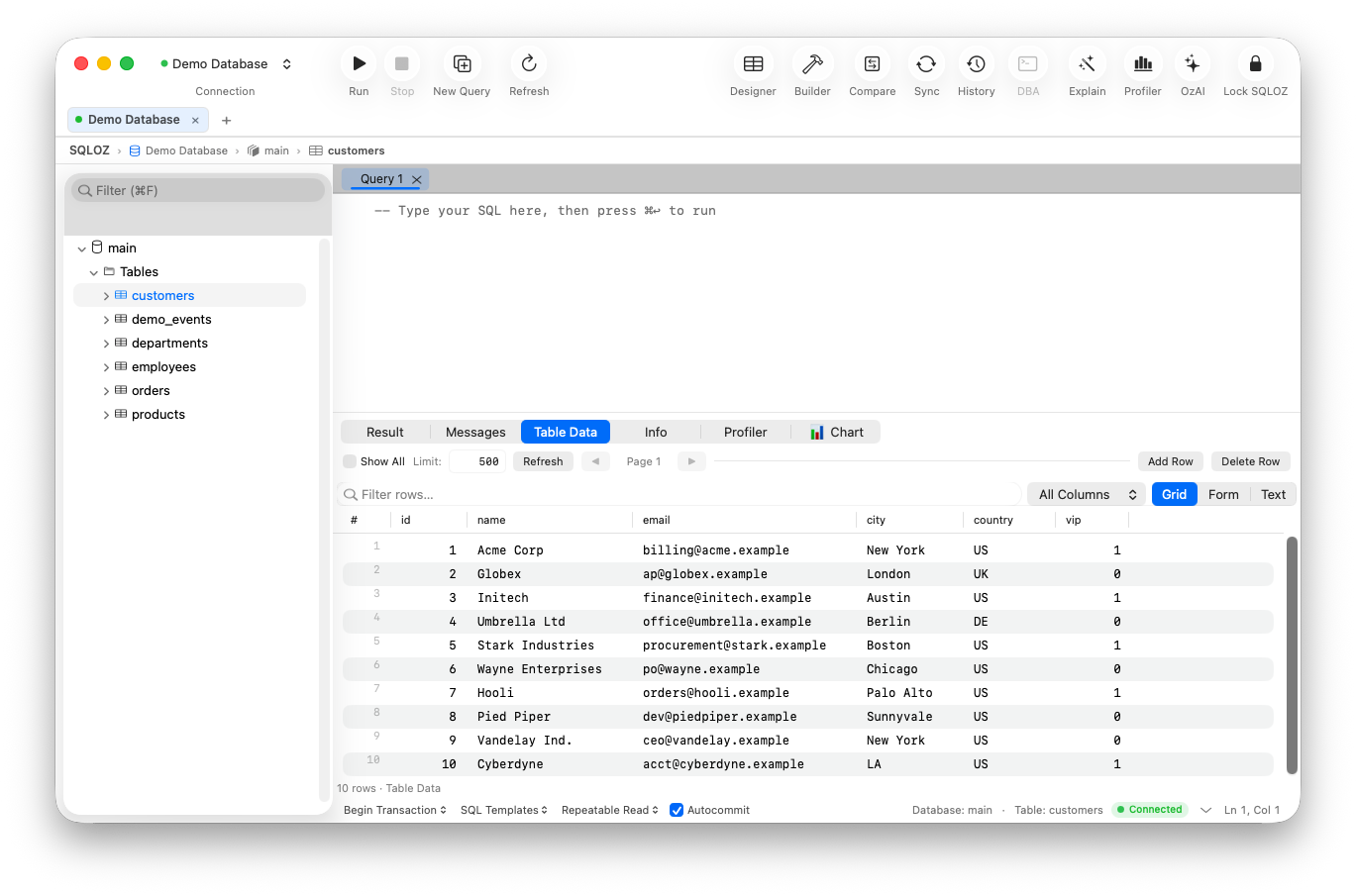
Native SQLite Workflows in SQLOZ:
- Drag & Drop File Opening: Drag any
.sqlite,.sqlite3, or.dbfile onto the SQLOZ dock icon or window to open it instantly. - Sandbox File Access: Open and inspect local SQLite files from Sandboxed apps or iOS Simulator directories without file permission errors.
- Visual WAL Inspection: Monitor active WAL checkpoints and inspect uncommitted transaction pages directly.
- One-Click SQLite Backup & Export: Duplicate, compress, or export your SQLite database to MySQL, PostgreSQL, CSV, or JSON in seconds.
Summary
SQLite offers unmatched reliability and performance for native macOS software when configured with proper concurrency and integrity PRAGMAs. Always enable WAL mode, enforce foreign keys explicitly, and use native inspection tools like SQLOZ to monitor your local database architecture.
To learn more about SQLite workflows on Apple platforms, check out our guide on How to Backup and Restore Local SQLite Databases on macOS and learn How to Access SQLite Databases from iOS Simulators.