
If you are developing an iOS, iPadOS, or watchOS application in Xcode using SwiftData, Core Data, GRDB, or raw SQLite, debugging local data storage is an everyday necessity.
However, Apple deliberately obfuscates where simulator application sandbox data is stored on your Mac. Finding that elusive .sqlite file buried deep inside nested CoreSimulator directories - and opening it without corrupting the active WAL journal - often wastes valuable engineering time.
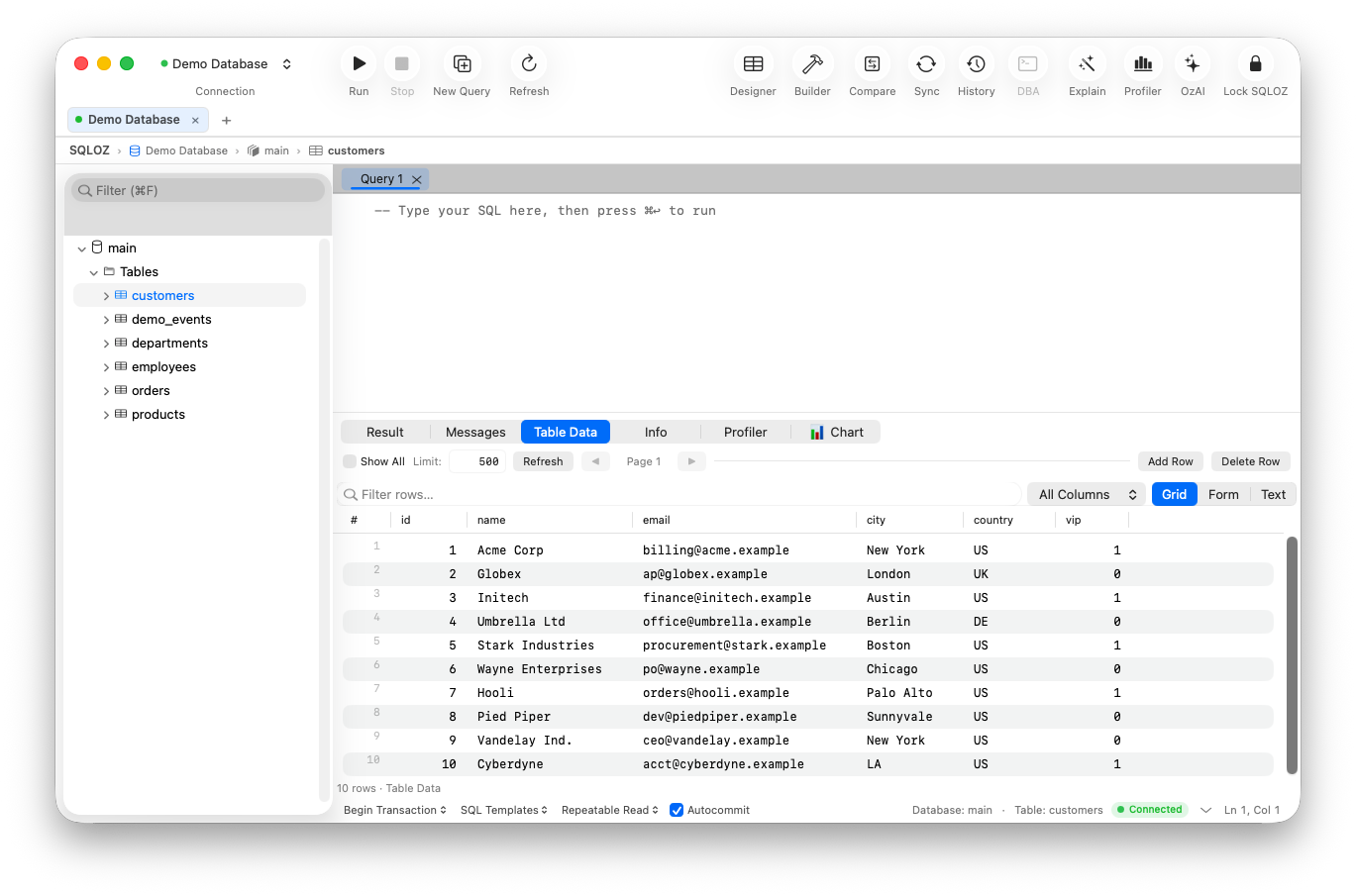
In this tutorial, we show you how to quickly locate your app’s SQLite file inside the iOS Simulator and how to inspect, query, and edit it live using SQLOZ on macOS.
1. Locating the iOS Simulator Sandbox Path
Every time you install or run an app in the Xcode Simulator, macOS creates an isolated sandbox directory inside:
~/Library/Developer/CoreSimulator/Devices/[DEVICE_UUID]/data/Containers/Data/Application/[APP_UUID]/Because device and app UUIDs are random 36-character alphanumeric strings, hunting for them manually in Finder is tedious.
Fast Method: Print Path from Swift Code
In your iOS app’s AppDelegate.swift or App.swift:
if let documentsURL = FileManager.default.urls(for: .documentDirectory, in: .userDomainMask).first {
    print("📍 SQLite Document Path: \(documentsURL.path)")
}
Fast Method: Terminal xcrun simctl
You can get the exact application container path from Terminal using simctl:
xcrun simctl get_app_container booted com.yourcompany.yourapp dataNavigate to that folder, and open Documents or Library/Application Support/ to find your .sqlite file (along with the -wal and -shm auxiliary journal files).
2. Inspecting and Editing the Database in SQLOZ
Once you locate your app’s SQLite database file:
- Drag and Drop into SQLOZ: Simply drag the
.sqlitefile from Finder directly into SQLOZ. - Real-Time WAL Sync: SQLOZ automatically recognizes Write-Ahead Logging (
-wal) files, ensuring you see the most recent uncommitted in-memory simulator writes. - Inspect Core Data & SwiftData Models: SQLOZ parses Core Data schema metadata (
Z_PRIMARYKEY,Z_METADATA, entity tables prefixed withZ...) and displays your models in a clean, human-readable data grid. - Live Cell Editing: Modify cell values, test edge cases (e.g. set an account balance to
0or trigger an error flag), and click Apply Changes (⌘S). Your running iOS Simulator will instantly reflect the modified data!
3. Creating Snapshots for Unit Testing
Need to save a clean starting database state for your automated UI tests?
- Right-click the SQLite file in SQLOZ and select Export Table / Database.
- Save a snapshot fixture to your Xcode project’s
Tests/Fixturesdirectory. - Read our guide on Converting Databases to SQLite for Offline Testing.
Summary
Debugging iOS Simulator databases shouldn’t require complex terminal navigation or clunky command-line tools.
With SQLOZ, iOS and Mac developers can drag, inspect, and modify SQLite and Core Data stores in seconds with pure native Apple Silicon performance.
Download SQLOZ for macOS and supercharge your iOS app development workflow today.