
Modern full-stack developers often work on multiple client or internal projects concurrently. Before long, a single MacBook Pro is running:
- MySQL 8.4 for an e-commerce monolith.
- PostgreSQL 16 with pgvector for an AI microservice.
- Redis 7 for caching and session queues.
- Multiple SQLite files for local prototype builds.
By default, database engines ship with configuration presets meant for dedicated production servers. MySQL’s InnoDB buffer pool and PostgreSQL’s shared buffers assume they own the entire machine. When multiple engines compete for Unified Memory on macOS, system swap spikes, thermal fans spin up, and overall responsiveness degrades.
In this guide, we explore how to configure multiple local database engines for minimal resource footprints and showcase how native macOS management tools keep your Mac running fast.
1. Tuning Database Buffer Pools for Local macOS Development
On a production server with 64 GB of RAM, allocating 70% of memory to the database buffer pool maximizes cache hit ratios. On a local development laptop, however, your local database typically contains less than 500 MB of actual data!
Allocating gigabytes of RAM to empty cache buffers wastes system resources.
A. Tuning MySQL (my.cnf or /opt/homebrew/etc/my.cnf)
[mysqld]
# Shrink InnoDB Buffer Pool from default 1GB+ to 64MB
innodb_buffer_pool_size = 64M

# Reduce log file sizes and thread pools
innodb_log_buffer_size = 8M
max_connections = 25
table_open_cache = 400

# Disable performance schema if not profiling queries locally
performance_schema = OFF
Result: Drops local MySQL memory usage from 1,400 MB to under 90 MB!
B. Tuning PostgreSQL (postgresql.conf)
# Limit shared memory buffers for local dev
shared_buffers = 64MB
work_mem = 4MB
maintenance_work_mem = 16MB
max_connections = 20
Result: Reduces local PostgreSQL footprint to ~35 MB of RAM.
2. Managing Background Daemons via Homebrew Services
Never leave heavy database engines running as persistent background services when you are not actively using them.
Inspecting and Stopping Inactive Services:
# View active Homebrew services and their resource states
brew services list

# Stop services when switching project contexts
brew services stop mysql@8.4
brew services stop postgresql@16
Pro Tip: Automate with Shell Aliases
Add project-specific aliases to your ~/.zshrc:
alias db:work="brew services start postgresql@16 && brew services start redis"
alias db:stop="brew services stop --all"
3. The Docker Trap: Use Native Daemons or OrbStack
If your workflow requires containerized databases, avoid legacy Docker Desktop on macOS. Docker Desktop runs a heavy, memory-hungry hypervisor that pre-allocates gigabytes of RAM.
Modern Lightweight Alternatives:
- Homebrew Native: Zero virtualization overhead. Runs directly on the macOS Darwin kernel.
- OrbStack: An ultra-lightweight, native Swift Docker and Linux container manager that boots in 2 seconds, dynamically reclaims unused RAM, and draws a fraction of the battery power.
4. Lightweight Database Management with SQLOZ (macOS Native)
Running multiple database engines requires a database manager that doesn’t consume the resources you just saved.
SQLOZ was built specifically for developers who juggle multiple database connections simultaneously on Apple Silicon:
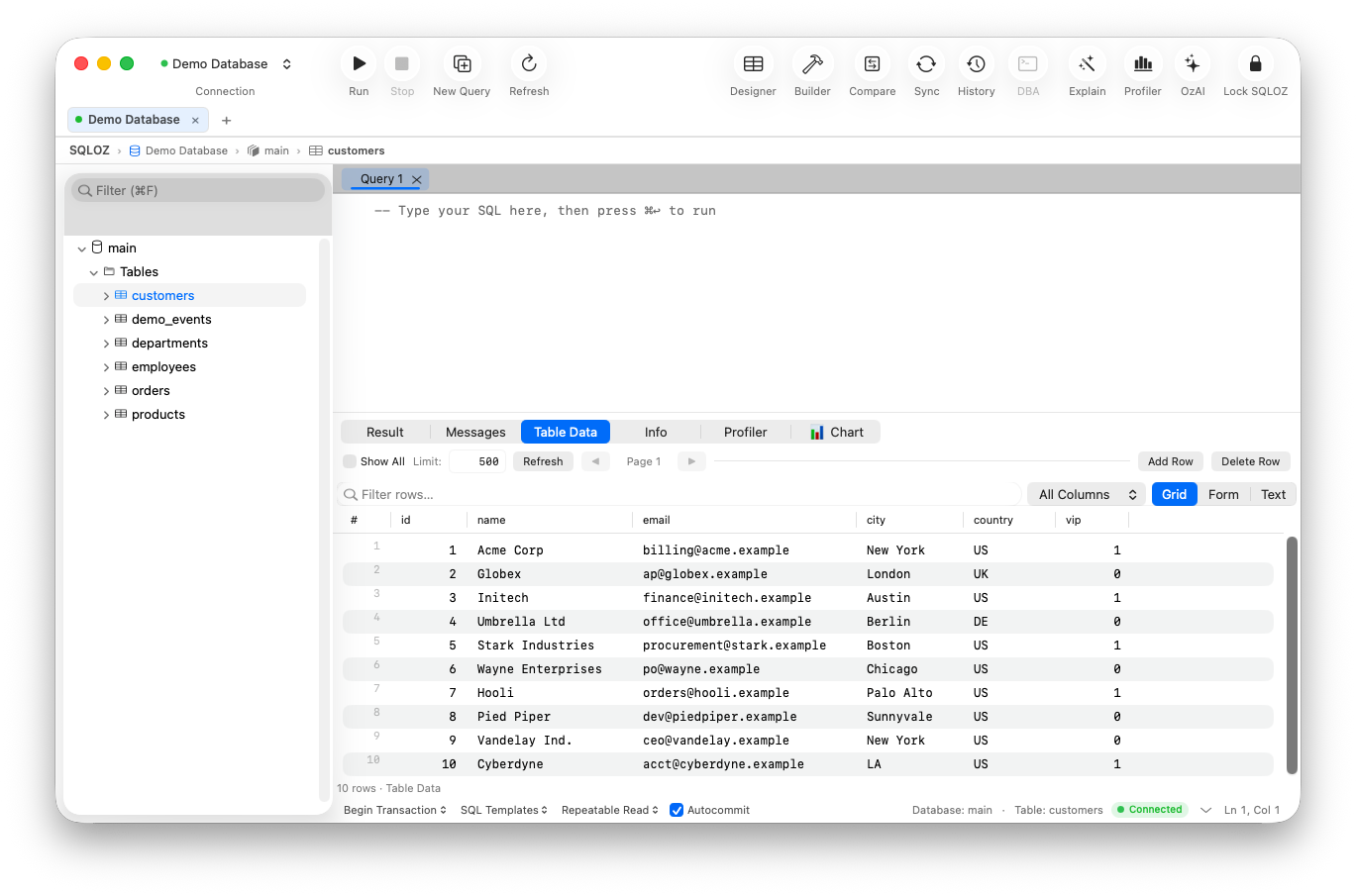
- Multi-Engine Workspace: Keep tabs open for MySQL, PostgreSQL, SQLite, and cloud databases inside a single unified window.
- Lazy Connection Pooling: SQLOZ connects to databases on-demand. Inactive connection tabs automatically suspend background pings, keeping client CPU utilization at 0.0%.
- Minimal RAM Footprint: Idling at just 45 MB to 75 MB, SQLOZ leaves maximum Unified Memory available for your compilers and dev servers.
Summary
You don’t need a 128 GB Mac Studio to run a complete microservice stack. By tuning buffer pools to realistic local sizes, stopping idle daemons, and adopting native Swift tools like SQLOZ, your MacBook will stay cool, quiet, and fast all day.
To explore more about optimizing your developer workstation, read our guide on How to Build an Ultra-Lightweight Local Web Dev Stack on macOS and discover Solving Port 3306 and 5432 Conflicts on Mac.