
Running databases inside Docker containers (via Docker Desktop or OrbStack) is standard practice for modern web development. You spin up MySQL or PostgreSQL with a single docker-compose.yml file, and your entire environment is isolated.
However, connecting your native macOS database client to a Docker container frequently fails with frustrating connection refusals:
Connection refused to host 127.0.0.1:3306
-- or:
could not connect to server: Connection refused (0x0000274D/10061)
In this quick troubleshooting guide, we cover the top 3 reasons macOS database clients fail to connect to Docker and how to configure SQLOZ for instant local container connectivity.
1. Top 3 Docker-to-Mac Connection Traps
Trap 1: Missing or Misconfigured Port Mapping (ports vs expose)
In docker-compose.yml, using expose only opens the port to other containers on the same Docker network. It does not expose the port to your Mac host:
# WRONG (Internal container network only):
services:
  db:
    image: postgres:16
    expose:
      - "5432"

# CORRECT (Binds container port 5432 to your Mac localhost 5432):
services:
  db:
    image: postgres:16
    ports:
      - "127.0.0.1:5432:5432"
Trap 2: Port Conflicts with Local macOS Services
If you previously installed MySQL or PostgreSQL via Homebrew (brew services start mysql), that background service is already listening on 127.0.0.1:3306. When Docker attempts to bind port 3306, it fails or routes your GUI to the wrong database!
- Fix: Map your Docker container to an alternative port:
ports:
  - "3307:3306" # Connect your Mac GUI to port 3307!
Trap 3: localhost vs 127.0.0.1 (Unix Sockets vs TCP)
On macOS, entering localhost in a database GUI often causes the client to look for a local Unix socket file (/tmp/mysql.sock), which does not exist for Docker containers.
- Fix: Always explicitly enter
127.0.0.1to force TCP/IP loopback communication.
2. Connecting Docker Containers in SQLOZ
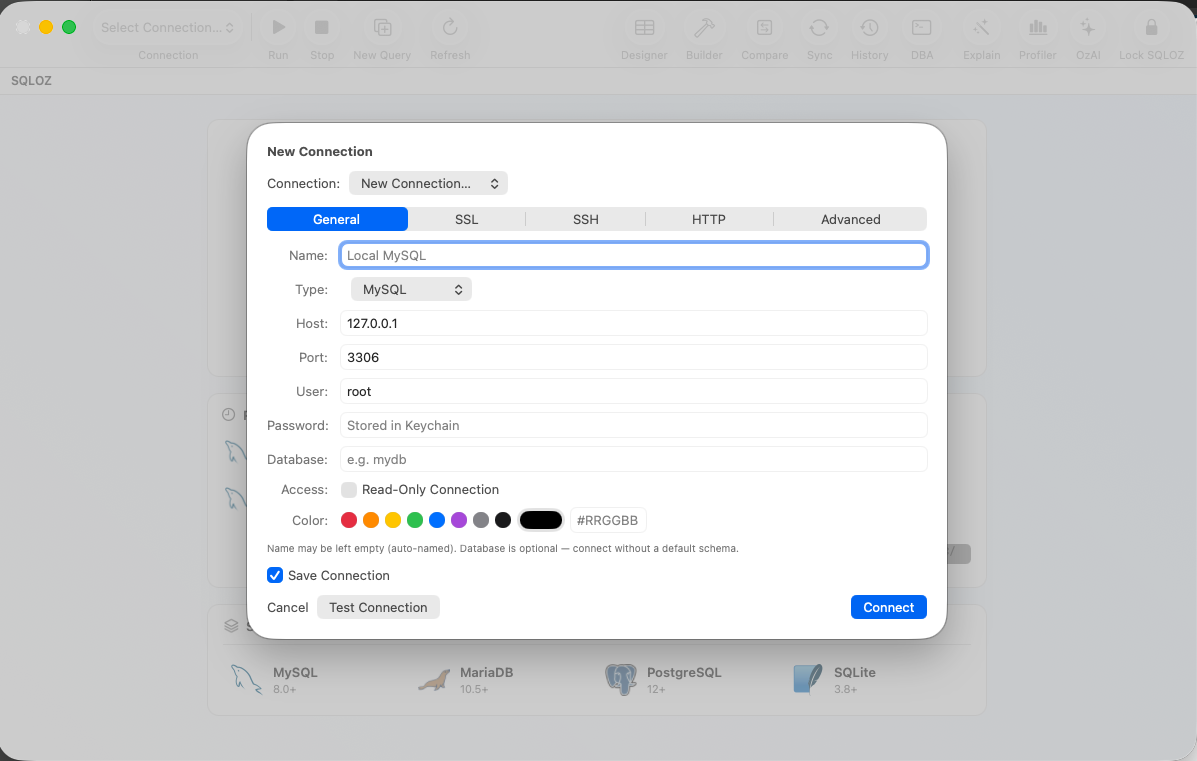
SQLOZ makes connecting to local Dockerized databases effortless:
- Open SQLOZ and click New Connection.
- Select your engine (MySQL or PostgreSQL).
- Host: Set to
127.0.0.1. - Port: Enter your mapped port (
3306,3307, or5432). - Environment Tag: Set the badge to Dev (Green) to visually distinguish your local container from production servers.
- Click Test Connection ➔ Connect.
SQLOZ connects in milliseconds, giving you instant access to your container’s tables, data grid, and visual query tools.
Summary
Connecting your native Mac database GUI to Docker containers requires verifying host port mappings (127.0.0.1:PORT) and avoiding local Homebrew port collisions.
With SQLOZ, Mac developers get a fast, native client that connects seamlessly to Docker containers, local files, and remote cloud databases.
Download SQLOZ for macOS and streamline your local Docker workflow today.