
Mobile application engineering on iOS and Android requires robust local data persistence. Whether you are building with native Swift (using SwiftData, Core Data, or GRDB.swift) or cross-platform Flutter (using sqflite or drift), local databases under the hood are almost always powered by SQLite.
However, inspecting local database state during active development is notoriously tedious. Mobile operating systems enforce strict application sandboxing, burying database files deep inside UUID-named simulator directories like:
~/Library/Developer/CoreSimulator/Devices/[DEVICE-UUID]/data/Containers/Data/Application/[APP-UUID]/Documents/Attempting to locate, extract, and query these sandboxed SQLite files with command-line tools or generic viewers slows down feature iteration.
In this guide, we explore how mobile database persistence works, demonstrate quick commands to locate simulator databases on macOS, and show how native desktop clients streamline mobile database inspection.
1. Locating SQLite Databases in the iOS Simulator
When your Swift or Flutter app executes in the Xcode iOS Simulator, its filesystem sandbox resides inside your user Library.
Finding the Active App Sandbox via Terminal:
# Print the sandbox directory for the booted iOS Simulator and your App Bundle ID
xcrun simctl get_app_container booted com.example.myawesomeapp data
This returns the exact path to your app’s sandbox. From there, navigate to Documents/ or Library/Application Support/ to find your .sqlite or .db files:
cd $(xcrun simctl get_app_container booted com.example.myawesomeapp data)/Documents
ls -la
# Output: app_database.sqlite, app_database.sqlite-wal, app_database.sqlite-shm
2. Best Practices for Mobile Database Concurrency
Whether using Flutter drift or Swift GRDB, ensure your mobile SQLite database is configured for non-blocking UI performance:
- Always Enable WAL Mode: Without Write-Ahead Logging, heavy background synchronization threads will lock the main UI thread with
SQLITE_BUSYerrors. - Handle Database Upgrades Gracefully: Mobile users frequently skip intermediate app releases (e.g., upgrading directly from version 1.2 to 2.0). Ensure your migration schema logic handles step-wise incremental DDL sequentially.
- Respect File Protection Keys on iOS: When deploying to real iOS hardware, remember that files saved under default iOS Data Protection (
NSFileProtectionComplete) cannot be read by background tasks while the device is locked.
3. Visual Mobile Database Inspection with SQLOZ (macOS Native)
Extracting .sqlite files to your Desktop just to run a quick SQL query disrupts your coding flow.
SQLOZ is designed specifically for Apple developers, providing native integration with macOS sandboxes and iOS Simulators.
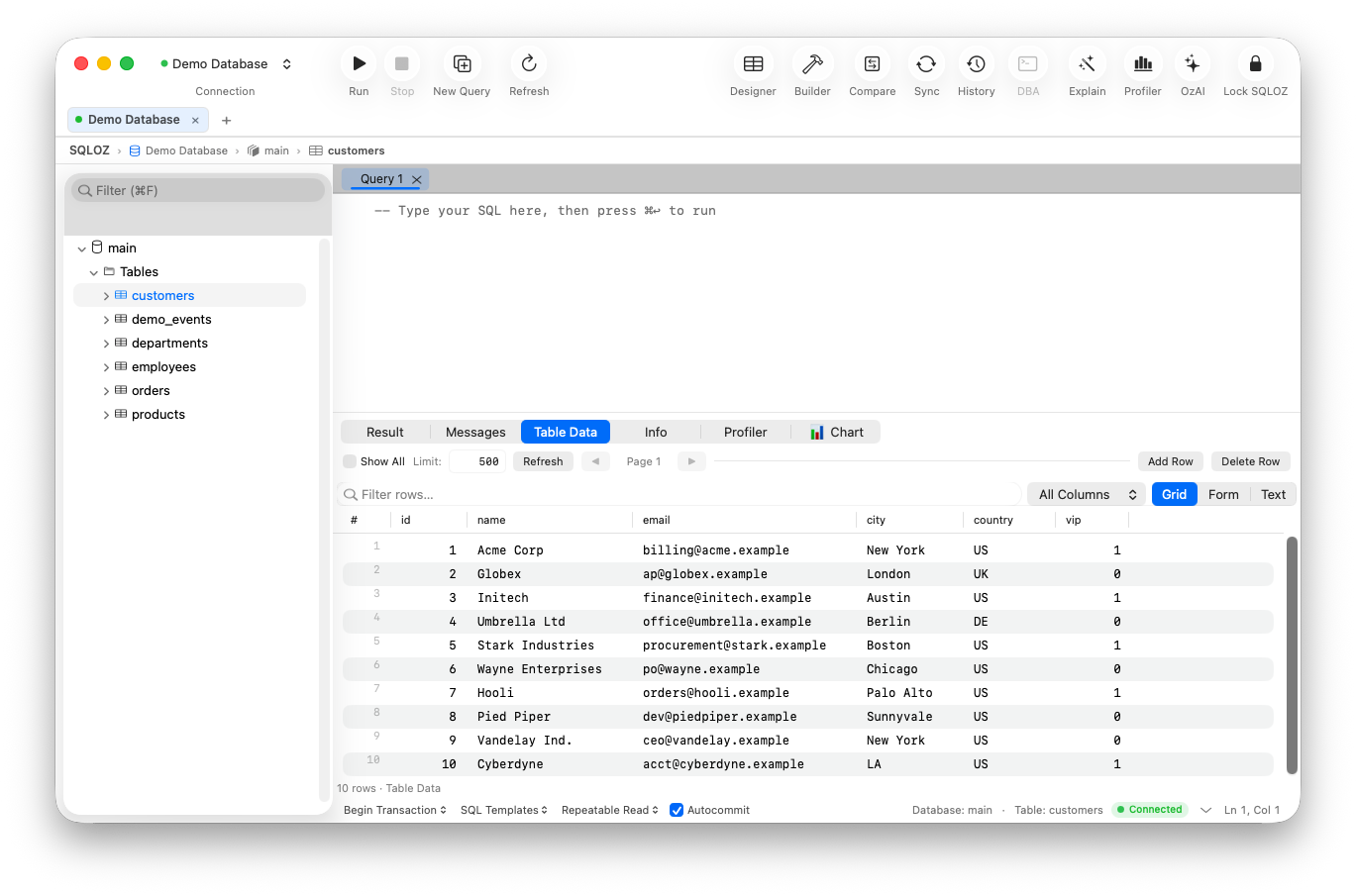
Why Mobile Developers Choose SQLOZ:
- Instant Simulator Drag & Drop: Drag the
.sqlitefile directly from Finder into SQLOZ. It opens in less than 100ms with zero file-locking conflicts. - Full WAL Concurrency Support: SQLOZ reads active WAL frames in real time. You can keep SQLOZ open alongside the running iOS Simulator or Flutter app, watching rows insert live as you interact with the mobile UI.
- Inline Cell Editing & Mock Seeding: Need to simulate an edge-case user profile with an expired subscription? Simply double-click the cell in SQLOZ’s Table Data Grid, update the timestamp, press
⌘S, and immediately trigger a refresh in your mobile app. - Export to CSV / JSON: Export mobile test datasets to JSON or CSV in one click to share reproducible bug reports with your QA and backend teams.
4. Flutter (Drift / Sqflite) vs. Native Swift (SwiftData / GRDB)
| Persistence Framework | Underlying Storage Engine | Database File Location | SQLOZ Compatibility |
|---|---|---|---|
| Flutter (sqflite / drift) | Standard SQLite 3 | Documents/my_db.db | 100% Native |
| Swift (GRDB.swift) | Standard SQLite 3 (WAL) | Application Support/db.sqlite | 100% Native |
| Swift (SwiftData / Core Data) | SQLite (Proprietary Schema) | Application Support/.sqlite | Inspectable & Queryable |
| Android Emulator (Flutter) | SQLite via adb pull | /data/data/[pkg]/databases/ | Open directly via SQLOZ |
Summary
Inspecting local database state is essential for verifying offline sync, debugging cache invalidation, and testing edge cases in mobile applications. By utilizing xcrun simctl shortcuts and pairing your workflow with a native Swift client like SQLOZ, you eliminate sandbox friction and accelerate your mobile release cycle.
To learn more about SQLite techniques on Apple platforms, read our tutorial on How to Access SQLite Databases from iOS Simulators and discover Managing SQLite Databases in Native macOS Apps.