Chapter 3: SQL Editor & Query Execution
Info: This chapter explains how the SQL editor provides memory protection, non-blocking query cancellation and safety gates that prevent data loss in live environments.
In this chapter:
- 3.1 Memory Protection (Bounded Streaming)
- 3.2 Query Cancellation
- 3.3 Live-Environment Safety Gates
- 3.4 Results, transactions and reusable SQL
- 3.5 Frequently Used Shortcuts
- Related Topics
3.1 Memory Protection (Bounded Streaming)
When you run a query such as SELECT * FROM dev_table, classic tools try to load the entire result set into memory at once, which can freeze the system. SQLOZ prevents this with Bounded Query Streaming.
How it works:
- Only 1,000 rows (or your configured limit) are fetched from the database at a time.
- As you scroll down, new chunks are streamed in the background asynchronously.
- Even if the table has millions of rows, no Out-of-Memory condition occurs and the application’s RAM usage stays stable.
Tip: Combined with the Bounded Grid, this behavior lets you work with very large result sets. See Chapter 4.
3.2 Query Cancellation
A query can accidentally run too long or overload the server. The SQLOZ interface does not freeze in this situation.
- Press the red Stop (⏹) button on the toolbar, or use the
Cmd + .shortcut. - SQLOZ sends the appropriate socket-interrupt signal for the server engine (
mysql_free_result,PQcancel,sqlite3_interrupt). - The query running on the server is cancelled within a short time.
3.3 Live-Environment Safety Gates
Read-Only Session Lock
To avoid changing data while doing read-only analysis on a live database, you can switch the editor to read-only mode.
- Click the Read-Only Lock (🔒) icon in the bottom-right corner of the editor.
- While this mode is on,
INSERT,UPDATE,DELETE,DROPandALTERcommands are caught at the client level and blocked before reaching the server.
Warning: In read-only mode the application displays a warning like: “Read-Only Mode Active: Your session is read-only. Data-modifying queries are blocked.”
Unconstrained UPDATE/DELETE Safety Lock
One of the most common data-loss scenarios is forgetting the WHERE clause in an UPDATE or DELETE query and affecting all rows in the table. SQLOZ detects UPDATE/DELETE queries without a WHERE clause and shows an immediate warning before proceeding:
Important: No
WHEREclause was detected in thisDELETE FROM customer_logsquery. This operation will delete the whole table. Are you sure you want to continue? [Cancel] [Run Anyway]
- Cancel: The operation is stopped immediately and the data is protected.
- Run Anyway: Users who intentionally want to run the query can proceed.
3.4 Results, transactions and reusable SQL
Each editor tab has a result area with Result, Messages and Info views. A multi-statement script reports each statement in the result area, while the messages view keeps execution details and errors visible.
Use the transaction controls in the editor status bar to begin, commit or roll back a transaction. Savepoints are available while working in a transaction: create a savepoint, roll back to it, or release it. After cancelling, check the server response and transaction state before continuing. If the server reports an aborted transaction, roll it back.
The editor also provides built-in SQL templates for SELECT, data changes, DDL, objects, transactions, maintenance and administration. Templates insert editable SQL into the current tab; they are separate from saved query history.
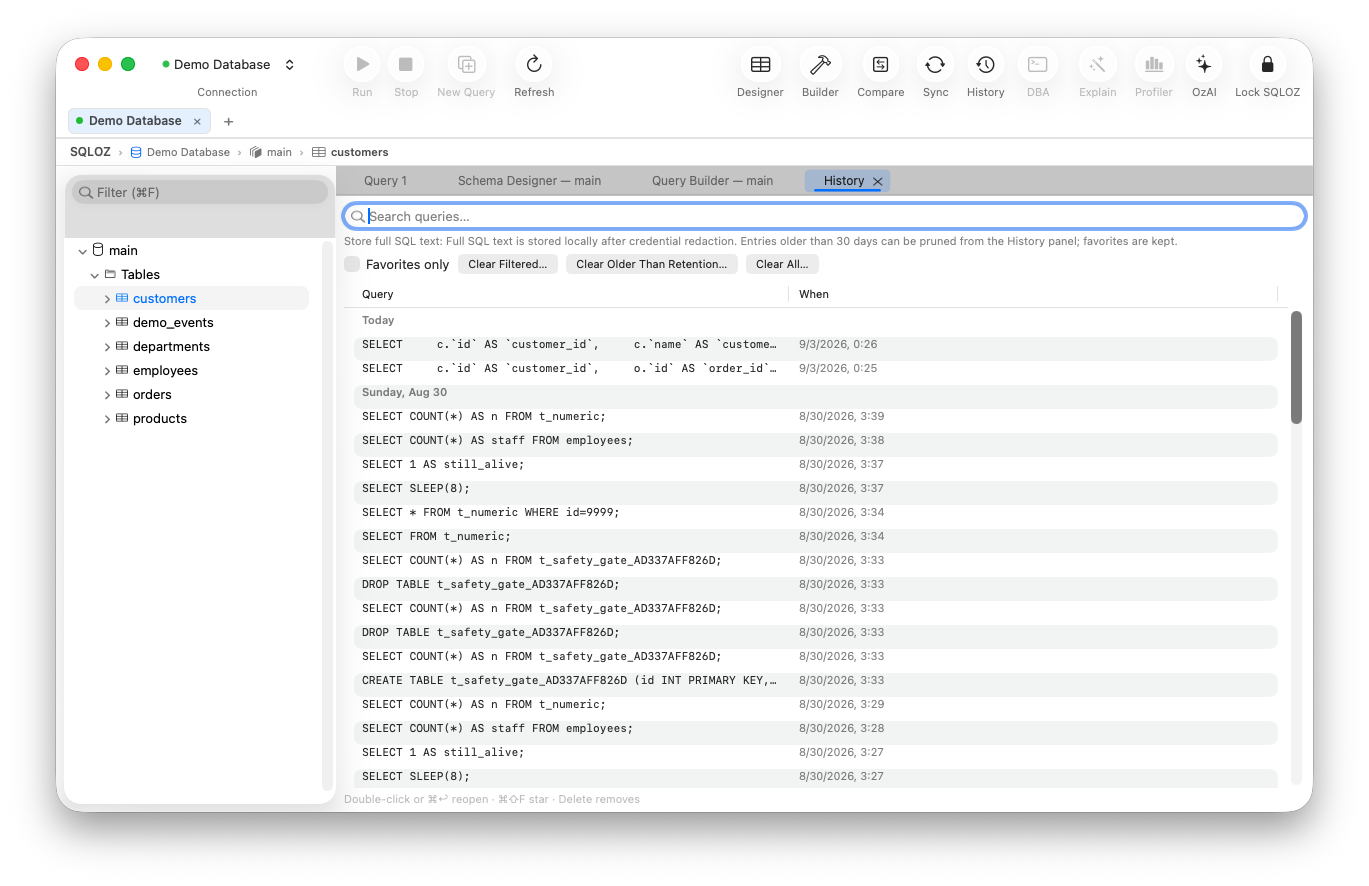
Use Favorites → Organize Favorites… to create folders, add copied SQL files or links to external SQL files, rename or delete entries. From the editor, add the current tab to Favorites. In the History panel, Save to File Favorites stores a selected query as a reusable .sql favorite.
Use File → Open SQL Script… to load a .sql file into the active editor (or a new query tab), and File → Save or Save As… to keep the script. SQLOZ warns before replacing unsaved SQL. File → Save Session… stores open query tabs in a .sqlozsession file; Open Session… reopens the tabs whose saved connection profiles still exist.
3.5 Frequently Used Shortcuts
The shortcuts most often used to keep your hands on the keyboard are:
| Shortcut | Function |
|---|---|
Cmd + Enter | Runs the selected query or the line under the cursor |
Cmd + . | Cancels the running query |
Cmd + Shift + F | Formats SQL code (indentation) |
Cmd + / | Turns the selected lines into -- comments |