Chapter 2: Connections & Tunnels
Info: This chapter covers establishing direct database connections, configuring SSH Jump Host and HTTP PHP tunnels, environment color tags and the secure storage of credentials.
In this chapter:
- 2.1 Establishing a Direct Connection
- 2.2 Connection profiles and safe environments
- 2.3 SSH Jump Host Tunnel
- 2.4 HTTP PHP Tunnel (sqloz-tunnel.php)
- 2.5 Environment Color Tags
- 2.6 Secure Credential Storage
- Related Topics
2.1 Establishing a Direct Connection
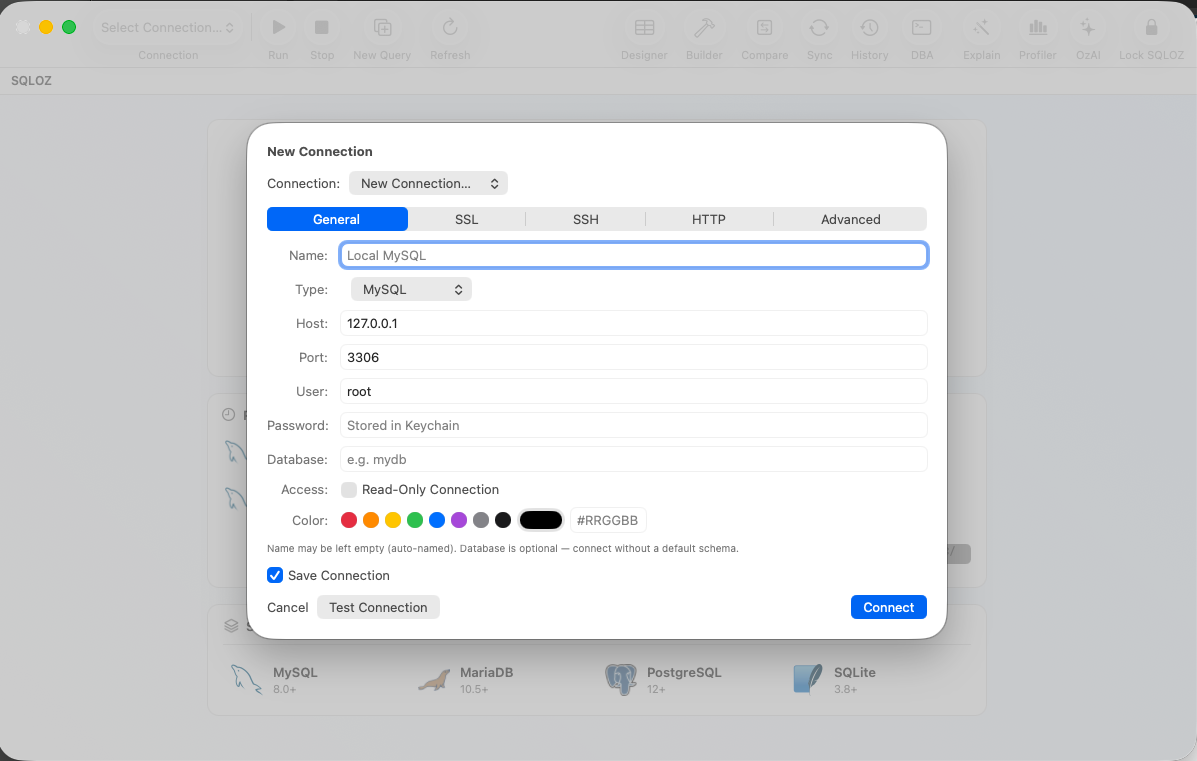
Follow these steps to connect to a database hosted on a local machine or on a server exposed to the internet.
- Press
Cmd + Nor use the File → New Connection… menu. - In the General tab, fill in the following fields:
- Connection Name: A descriptive name (e.g.
Main E-Commerce Prod). - Engine: Select MySQL, PostgreSQL or local SQLite. MariaDB uses the MySQL profile family and is identified after connection; it is not a separate picker item. MySQL 8.0/8.4, MariaDB 10.6/11.4 and PostgreSQL 16 are the current tested matrix, not connection minimums. See Chapter 22.
- Host & Port: The server address and port (MySQL default
3306, PostgreSQL5432). - User & Password: The username and password.
- Connection Name: A descriptive name (e.g.
- Verify the connection with Test Connection. Once you see the success confirmation, connect with Save & Connect.
2.2 Connection profiles and safe environments
Saved connection profiles keep non-secret settings such as the name, engine, host, port, database, environment color and read-only preference. Passwords and tunnel secrets are stored in the macOS Keychain.
- Use Save & Connect for a reusable profile.
- Use the session-only connection option when you need a temporary connection that should not be added to the saved profile list.
- Assign Prod, Staging, Dev, Test or Sandbox colors so the active workspace and object browser show the environment clearly.
- Turn on the profile’s Read-Only setting before inspecting a production database. The editor and grid then refuse data-changing actions.
2.3 SSH Jump Host Tunnel
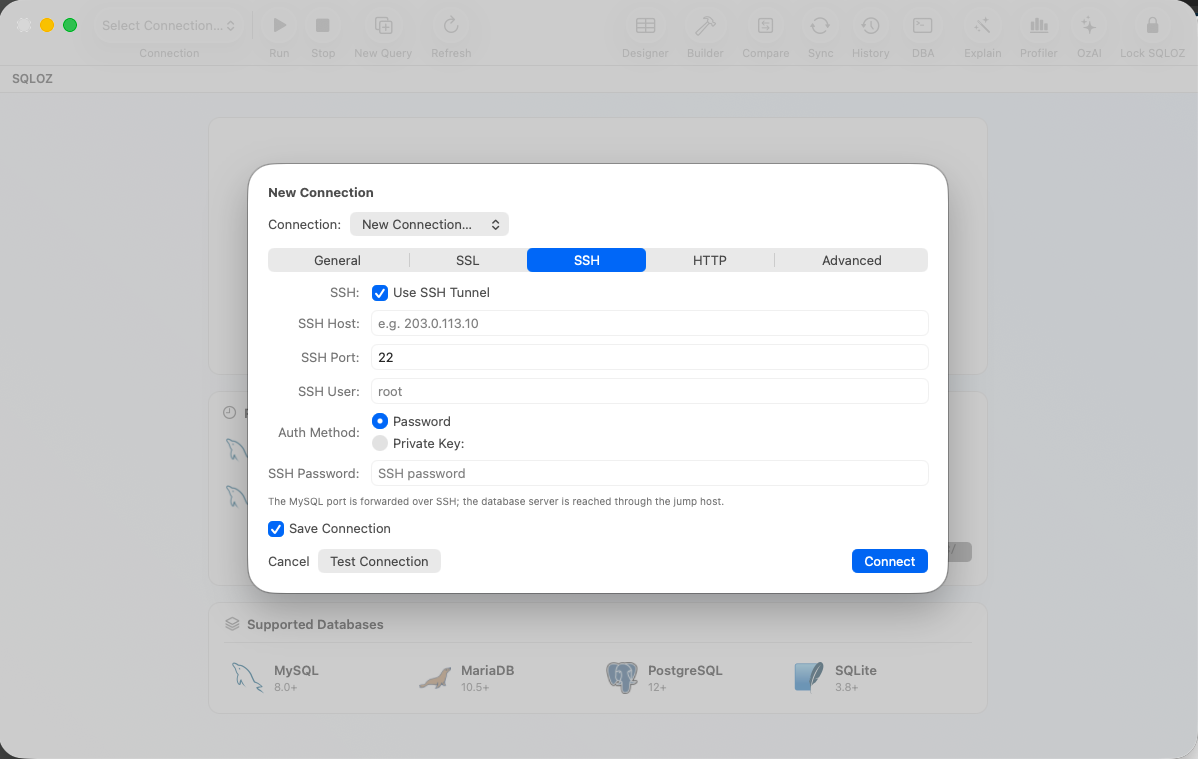
In many enterprise environments the database server is not directly exposed to the external network; it is reached only through a Jump Host (Bastion). SQLOZ provides a built-in SSH tunnel for this setup.
[SQLOZ] --(SSH Tunnel / Port 22)--> [SSH Jump Host] --(Local Network)--> [Database Server]Configuration steps:
- In the connection dialog, switch to the SSH Tunnel tab.
- Check Enable SSH Tunnel.
- Enter the SSH server address (SSH Host), port (default
22) and username. - Choose one of the following Authentication Method options:
- Private Key (recommended): Select the
~/.ssh/id_ed25519orid_rsafile; enter the passphrase if it has one. - Password: The SSH password.
- Private Key (recommended): Select the
- Verify the tunnel with Test Connection. SQLOZ opens the tunnel in the background and starts the database session.
Tip: Private-key authentication is recommended over password authentication because it is more secure and easier to automate.
2.4 HTTP PHP Tunnel (sqloz-tunnel.php)
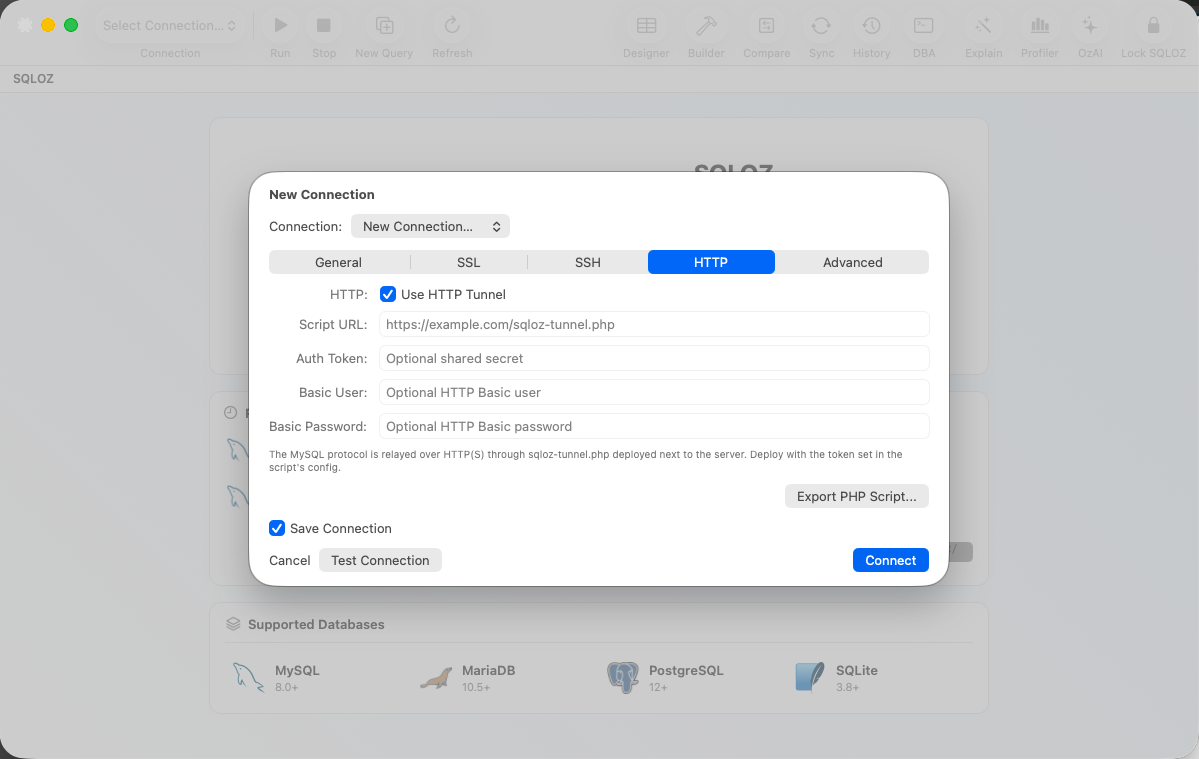
On shared hosting providers (cPanel/DirectAdmin), port 3306 is usually closed to the outside and SSH access is not provided. In this case the database is reachable only through PHP on the web server. SQLOZ provides an HTTP tunnel that uses the sqloz-tunnel.php script.
[SQLOZ] --(HTTPS POST / Token Encrypted)--> [sqloz-tunnel.php] --(localhost:3306)--> [MySQL Server]Setup steps:
- Upload the
sqloz-tunnel.phpfile from the SQLOZ installation package to the web folder of the hosting account (e.g.public_html/). - Change the
$TOKEN = "gizli_sifreniz";line in the script to a strong secret key. The script refuses to run, returning an HTTP 500 error, until the default token is changed. - In the SQLOZ connection settings, check the HTTP Tunnel tab:
- Tunnel URL:
https://example.com/sqloz-tunnel.php - Shared Secret: The secret token you wrote into the script.
- Tunnel URL:
- Verify the tunnel with Test Connection.
Passing Database Credentials
Important: The database username and password are never written into the
sqloz-tunnel.phpfile. Only the single-useSQTUNNEL_TOKEN(Shared Secret) is defined in the script.
The tunnel script does not run a database driver and does not see the database password in plaintext. Its job is only to carry binary bytes (a raw TCP byte proxy):
- The local driver in SQLOZ reads the greeting packet (Server Greeting) coming from the server over the tunnel.
- The driver encrypts the database username and password entered in the connection window according to the standard database binary protocol (Client Authentication Packet).
- The prepared binary packet is encoded as
base64and sent to the script over an encrypted HTTPS connection. - The script decodes the packet and writes the raw bytes directly to the database TCP socket. The server authenticates the identity and the session is established.
Configuration Environment Variables
The sqloz-tunnel.php script can be configured from within the PHP file or through server-level environment variables. The following variables are supported.
| Environment Variable | Description | Default |
|---|---|---|
SQTUNNEL_HOST | Target MySQL server address | 127.0.0.1 |
SQTUNNEL_PORT | Target MySQL server port | 3306 |
SQTUNNEL_TOKEN | Secret access key the client must send | Must be changed |
SQTUNNEL_MAX_SESSIONS | Maximum concurrent live sessions | 16 |
SQTUNNEL_IDLE_TIMEOUT | Auto-termination time for idle worker processes (sec) | 3600 |
SQTUNNEL_LOCKOUT_THRESHOLD | IP lockout threshold on failed token attempts (brute-force protection) | 5 |
SQTUNNEL_LOCKOUT_WINDOW | Brute-force lockout window duration (sec) | 60 |
Configuration methods:
- Directly in the PHP file: Edit the
$SQTUNNEL_CFGarray at the top of the script.$SQTUNNEL_CFG = [ 'host' => '127.0.0.1', 'port' => 3306, 'token' => 'long_and_secret_password_123', ]; - Nginx (FastCGI): Add
fastcgi_paramlines to the relevantlocation ~ \.php$block in/etc/nginx/sites-available/default.location ~ \.php$ { fastcgi_param SQTUNNEL_HOST "127.0.0.1"; fastcgi_param SQTUNNEL_TOKEN "long_and_secret_password_123"; fastcgi_param SQTUNNEL_MAX_SESSIONS "32"; } - Apache (
.htaccess):SetEnv SQTUNNEL_HOST "127.0.0.1" SetEnv SQTUNNEL_TOKEN "long_and_secret_password_123" - Docker Compose:
services:
  web:
    image: php:8.2-apache
    environment:
      - SQTUNNEL_HOST=mysql-db
      - SQTUNNEL_PORT=3306
      - SQTUNNEL_TOKEN=long_and_secret_password_123
Warning: Until the default
'CHANGE_ME_to_a_long_random_string'token is changed, the script refuses to run for security reasons and returns HTTP 500.
2.5 Environment Color Tags
With many connection tabs open at the same time, the risk of running a query in the wrong environment (e.g. production) is high. SQLOZ reduces this risk with environment color tags.
Assign a color to each environment from the Environment Color badges in the General tab. The selected color is applied to the left Object Browser and the connection tab (tintColor).
- Prod (Red -
#E8334A): Live production servers. - Staging (Orange -
#FF9500): Test and pre-production environments. - Dev (Green -
#34C759): Local development environment. - Test (Blue -
#007AFF) and Sandbox (Purple -#AF52DE): Isolated test environments. - Custom color: A custom tone can be defined with the Apple color picker or a hex field.
2.6 Secure Credential Storage
SQLOZ does not store database and SSH passwords in text files, configuration files or log records. All sensitive passwords are sent to the hardware-encrypted macOS Keychain vault.
Tip: Storing passwords only in the macOS Keychain prevents credentials from being read by other devices and software.