
Because an SQLite database is encapsulated inside a single file on your Mac, many developers assume that backing it up is as simple as copying the file in Finder or running cp app.db app_backup.db.
However, if your application is actively writing to the database using Write-Ahead Logging (WAL) mode, simply copying the main .sqlite file will produce a corrupted, incomplete backup!
The most recent uncommitted transactions reside in the -wal and -shm shared memory files. If you copy during an active write, the snapshot will be in an inconsistent state.
In this guide, we show you the safe, atomic methods for backing up and restoring SQLite databases on macOS - both via the command line and visually using SQLOZ.
1. The Safe Command-Line Way: VACUUM INTO and .backup
Method A: The Modern VACUUM INTO Statement
Introduced in SQLite 3.27, VACUUM INTO creates a clean, fully defragmented, atomic backup of your database even while other processes are writing:
-- Inside the SQLite shell:
VACUUM INTO '/Users/username/Backups/app_backup_20260914.db';- Why it’s superior: It acquires a shared lock, flushes active WAL pages, defragments unused free pages, and writes a self-contained backup without interrupting readers.
Method B: The CLI Dot-Command .backup
sqlite3 live.db ".backup '/Users/username/Backups/live_backup.db'"2. One-Click SQLite Snapshots in SQLOZ
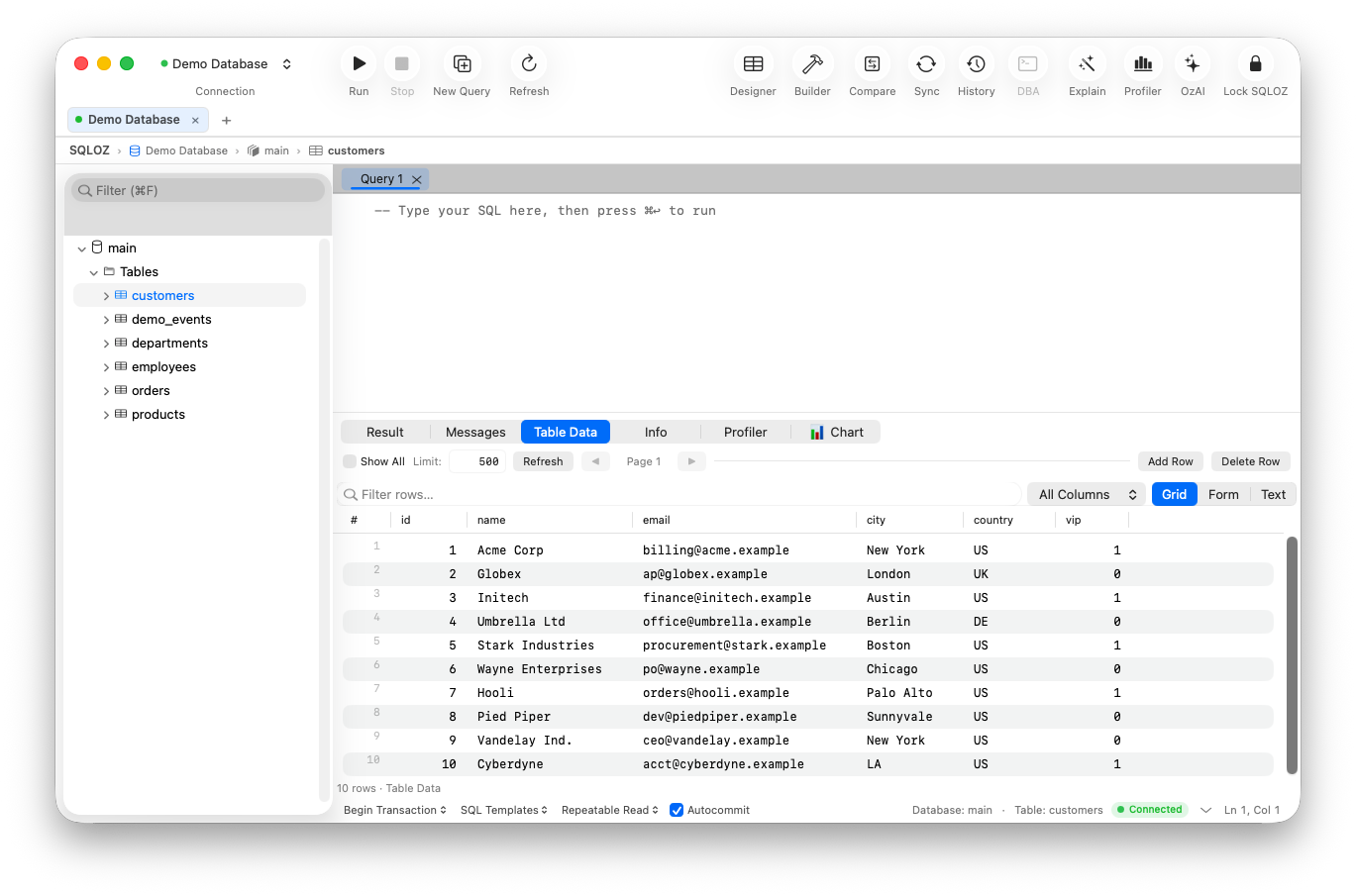
SQLOZ provides a native macOS interface for managing SQLite backups without touching the terminal:
- In the left Object Browser, right-click your SQLite database.
- Select Create Atomic Snapshot (Backup)…
- Choose your destination folder in macOS Finder.
- SQLOZ triggers an internal safe vacuum pass, packaging all active WAL transactions into a pristine, portable
.sqlitefile in milliseconds.
3. Restoring an SQLite Backup
Restoring an SQLite database is straightforward:
- Ensure your local development server or iOS simulator is stopped.
- Replace the corrupted or outdated
.sqlitefile with your backup file. - Delete any lingering
-walor-shmfiles in the directory so SQLite initializes a fresh journal. - Re-open the database in SQLOZ to inspect tables and verify row integrity.
Summary
Never copy active SQLite files directly in Finder while your app is running.
Using VACUUM INTO or SQLOZ’s native snapshot manager guarantees atomic, corruption-free SQLite backups every time.
Download SQLOZ for macOS and manage your SQLite databases with ease today.