
Exposing a database port (3306 for MySQL or 5432 for PostgreSQL) directly to the public internet is one of the most dangerous security vulnerabilities in cloud infrastructure. Automated botnets continuously scan IP ranges, launching brute-force password attacks and probing for unpatched database engine CVEs.
In any secure production or staging architecture, databases are sequestered inside a Private Subnet (VPC) and only accessible through a hardened bastion host (jump server) via an SSH Tunnel.
In this guide, we walk through how SSH tunneling works, how to configure local port forwarding via the macOS terminal, and how to configure an encrypted SSH tunnel seamlessly inside a native GUI database client like SQLOZ.
1. How an SSH Tunnel Protects Your Database
An SSH tunnel creates an encrypted, authenticated TCP pipeline between your local Mac and a remote server.
┌──────────────┐         Encrypted SSH (Port 22)         ┌──────────────┐      Internal VPC      ┌──────────────┐
│  Your Mac    │ ═══════════════════════════════════════►│ Bastion Host │ ──────────────────────►│ Private DB   │
│ (Local Port) │         TLS / SSH Keys                  │ (Public IP)  │      (Port 3306)       │ (10.0.1.50)  │
└──────────────┘                                         └──────────────┘                        └──────────────┘
When your database client sends packets to localhost:3307, the SSH client wraps those packets inside encrypted SSH traffic, transmits them to the bastion host, and the bastion forwards them across the private network to the database.
2. The Command-Line Method: SSH Local Port Forwarding
If you prefer using the macOS Terminal, you can establish a tunnel with the ssh -L flag:
ssh -N -L 3307:private-db.internal.vpc:3306 user@bastion.example.com -i ~/.ssh/id_rsaDeconstructing the Command:
-N: Tells SSH not to execute a remote shell command (tunnel-only mode).-L 3307:private-db.internal.vpc:3306: Forwards incoming traffic on your local port3307toprivate-db.internal.vpc:3306via the remote server.user@bastion.example.com: The public IP or DNS of your jump box.-i ~/.ssh/id_rsa: Path to your private SSH key.
The Downside of Terminal Tunnels:
- If your laptop goes to sleep or switches Wi-Fi networks, the terminal command silently disconnects.
- You must manage multiple terminal tabs if you connect to separate staging and production databases.
- It is easy to forget which local port maps to which remote environment.
3. The Modern GUI Method: Built-in SSH Tunneling in SQLOZ
A native macOS database client eliminates terminal tethering by embedding robust SSH tunnel management directly into the connection profile.
Step-by-Step Configuration in SQLOZ:
Step 1: Configure Your Database Credentials
- Open SQLOZ and click New Connection.
- Select MySQL (or PostgreSQL).
- Under the General tab, enter the database’s private VPC host (e.g.,
10.0.1.50ordb.internal), the database port (3306), user, and password.
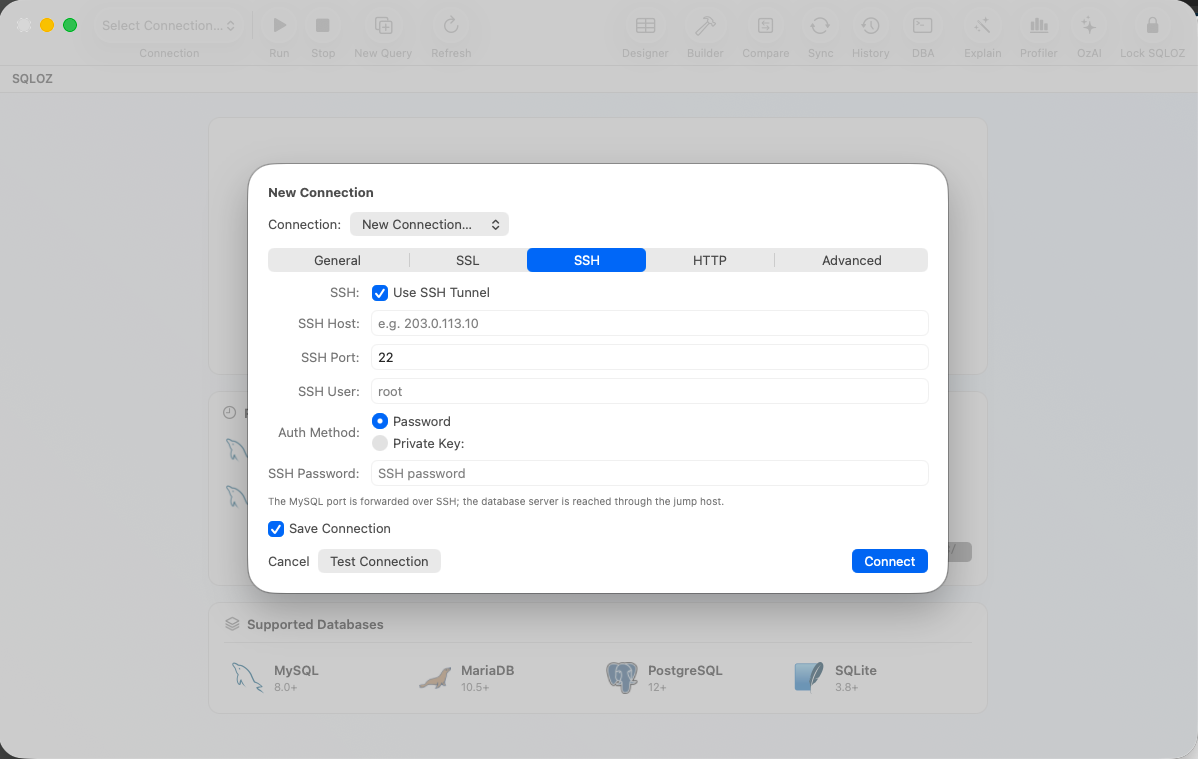
Step 2: Enable the SSH Tunnel Tab
- Click on the SSH Tunnel tab.
- Toggle Use SSH Tunnel on.
- SSH Host & Port: Enter the public IP address or hostname of your Bastion/Jump server and port
22. - SSH User: Enter your SSH login username (e.g.,
ec2-user,ubuntu, or your custom handle).
Step 3: Choose Your Authentication Method
SQLOZ supports modern cryptographic security standards:
- SSH Key File: Click to select your private key (
~/.ssh/id_ed25519or~/.ssh/id_rsa). SQLOZ natively supports passphrase-protected private keys stored in the macOS Keychain. - SSH Agent: If you manage keys via
ssh-agent, SQLOZ can leverage your existing agent socket. - Password: Standard password authentication with hardware-encrypted storage.
Step 4: Test and Connect
Click Test Connection. SQLOZ will first negotiate the cryptographic handshake with the SSH bastion, establish an in-memory virtual pipe, and then authenticate with the remote database engine.
Once connected, SQLOZ manages the tunnel lifecycle automatically - re-establishing dropped connections silently when your Mac wakes from sleep.
4. Environment Color Badges: Preventing Accidental Production Edits
When tunneling into multiple remote databases simultaneously, accidentally running a destructive test query on a production database is a developer’s nightmare.
In SQLOZ, you can assign an Environment Color Tag directly to your SSH connection:
- Production: Bright Red (
#E8334A) badge on the tab and query editor. - Staging: Orange (
#FF9500). - Development: Green (
#34C759).
These visual safeguards ensure you always know exactly which server and VPC your queries are touching.
Summary
Never leave your database exposed to the public internet. By combining an SSH bastion architecture with a native macOS database client like SQLOZ, you get ironclad security without sacrificing daily development velocity.
Download SQLOZ for macOS and set up your encrypted database tunnels in seconds.