
Extracting data from a production or local database into portable formats like CSV or JSON is one of the most common tasks for software developers, data analysts, and product managers. Whether you are generating a financial reconciliation sheet, preparing training data for machine learning models, or sharing sales metrics with stakeholders, speed and accuracy are essential.
Yet, performing exports via command-line tools (mysqldump, SELECT ... INTO OUTFILE, or psql \copy) often involves painful obstacles: server file permission restrictions (secure_file_priv), character encoding corruptions (UTF-8 vs Latin-1), and escaping edge cases with embedded commas or newlines.
In this tutorial, we cover both the traditional terminal methods and how to perform seamless, one-click exports using a native macOS GUI client like SQLOZ.
Method 1: The Command-Line Approach (Terminal)
Exporting MySQL to CSV
If you have direct access to the database server, you can execute:
SELECT id, email, created_at
FROM users
INTO OUTFILE '/var/lib/mysql-files/users.csv'
FIELDS TERMINATED BY ','
ENCLOSED BY '"'
LINES TERMINATED BY '\n';
Common Pain Points:
- Permission Denied: If the destination folder is not defined in MySQL’s
secure_file_privconfiguration, the query fails instantly. - Remote Servers: If you are connected to an Amazon RDS, Google Cloud SQL, or remote cluster,
INTO OUTFILEwrites to the remote server filesystem, not your local Mac!
Exporting PostgreSQL to CSV with \copy
PostgreSQL provides a client-side command via psql:
psql "postgresql://user:pass@host:5432/dbname" -c "\copy (SELECT id, username, email FROM users) TO '~/Desktop/users.csv' WITH CSV HEADER;"While functional, crafting multi-line SQL queries with complex filters into single-line terminal strings quickly becomes unmanageable.
Method 2: One-Click GUI Export with SQLOZ (The Native Mac Way)
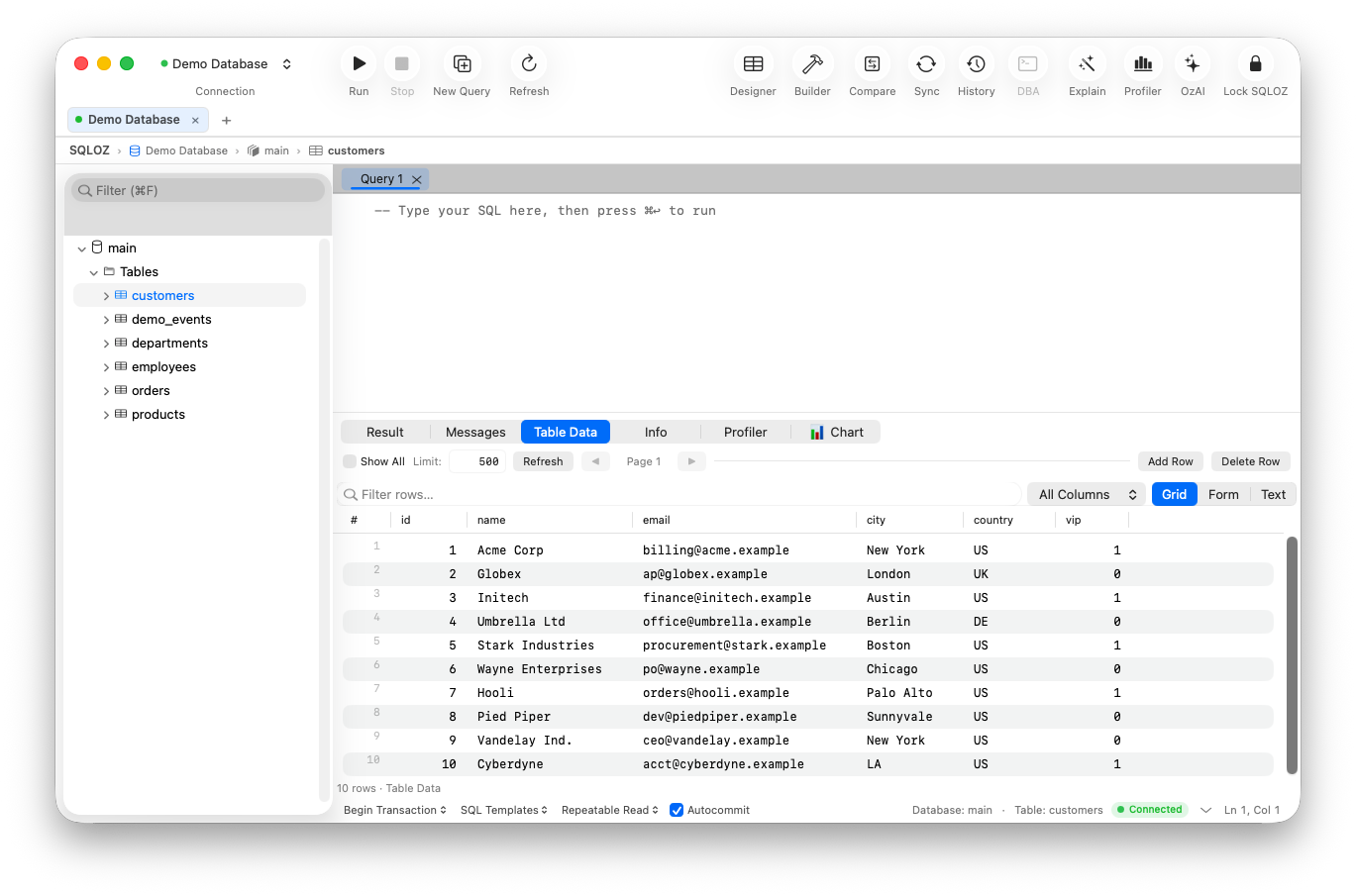
With a native macOS client like SQLOZ, exporting full tables or ad-hoc query result sets takes seconds without leaving your Mac or worrying about remote server permissions.
Step 1: Query or Browse Your Data
- Open SQLOZ and connect to your MySQL or PostgreSQL database.
- Double-click any table in the left sidebar to open the Data Grid, or run your custom analytical query in the SQL Editor.
Step 2: Choose Your Export Scope
SQLOZ lets you export:
- The Entire Table: Right-click the table name in the Object Browser and select Export Table.
- Filtered Grid Rows: Use the visual filter bar to narrow down rows, then select only the matching records.
- Ad-Hoc Query Results: Run any custom
SELECTquery, then click the Export icon in the results toolbar.
Step 3: Select Your Format (CSV, JSON, SQL, or Excel)
In the export modal:
- CSV: Configure delimiters (comma, semicolon, tab), quote wrapping, and UTF-8 encoding. Embedded newlines and special characters are automatically sanitized.
- JSON: Choose between an array of objects
[{"id": 1, "name": "..."}]or line-delimited JSON (JSONL) for big data processing pipelines. - SQL Inserts: Generate standard
INSERT INTOstatements compatible with your target dialect.
Step 4: Save Directly to macOS Finder
Click Save, choose your destination in Finder (or copy directly to your clipboard), and the data streams instantly. Because SQLOZ uses native stream buffering, exporting 500,000+ rows takes only a few seconds without freezing your interface.
Tips for Clean Data Exports
- Watch Out for Large Numbers: If you are exporting 64-bit IDs (
BIGINT) to CSV for spreadsheet programs like Microsoft Excel, wrap numbers in strings or use JSON to prevent Excel from rounding long digits into scientific notation (e.g.,1.23E+17). - Timezone Standardization: Always convert timestamps to UTC (
created_at AT TIME ZONE 'UTC') before exporting to avoid timezone drift between distributed teams. - Redact Sensitive PII: Before exporting production customer data, use SQLOZ’s integrated Data Masking (OzMask) to pseudonymize credit card numbers, phone numbers, and emails.
Conclusion
Exporting database records shouldn’t require complex terminal scripts or risky server file adjustments. A modern native database tool like SQLOZ gives you the precision of SQL combined with the elegance and speed of native macOS workflows.
Looking for a fast, reliable database GUI for Mac?
Download SQLOZ for macOS and simplify your data exports today.