
Docker has become the standard environment for local WordPress and WooCommerce development. Using Docker containers, developers can spin up clean, isolated environments running Apache/Nginx, PHP, and MySQL or MariaDB in seconds without polluting their local macOS system with global dependencies.
However, interacting with the WordPress database inside Docker can be frustrating. Running MySQL commands via docker exec -it wordpress_db_1 mysql -u wordpress -p provides an awkward CLI experience, and installing web-based tools like phpMyAdmin bloats your container stack and consumes valuable RAM.
In this guide, we walk through configuring Docker to expose MySQL ports to macOS, diagnosing common connection errors, and inspecting WordPress tables using a fast, native Mac database GUI.
1. Configuring docker-compose.yml to Expose MySQL Ports
By default, Docker Compose places the wordpress app container and the db database container on a private virtual bridge network. While the WordPress PHP container can communicate with db:3306, your macOS host cannot reach MySQL unless you explicitly map the port to your host machine.
The Correct docker-compose.yml Configuration:
version: '3.8'

services:
  wordpress:
    image: wordpress:latest
    ports:
      - "8080:80"
    environment:
      WORDPRESS_DB_HOST: db:3306
      WORDPRESS_DB_USER: wp_user
      WORDPRESS_DB_PASSWORD: wp_password
      WORDPRESS_DB_NAME: wordpress
    depends_on:
      - db

  db:
    image: mysql:8.0
    ports:
      # Map container port 3306 to host port 3306 (or 3307 if 3306 is taken)
      - "3306:3306"
    environment:
      MYSQL_DATABASE: wordpress
      MYSQL_USER: wp_user
      MYSQL_PASSWORD: wp_password
      MYSQL_ROOT_PASSWORD: root_secret_password
    volumes:
      - db_data:/var/lib/mysql

volumes:
  db_data:
[!TIP] If you already have a native MySQL service running on macOS using port
3306, change the port mapping in docker-compose to"3307:3306". In your database GUI, simply connect to host127.0.0.1and port3307.
2. Connecting from SQLOZ to Dockerized MySQL
Once your container is running (docker compose up -d), open SQLOZ on your Mac:
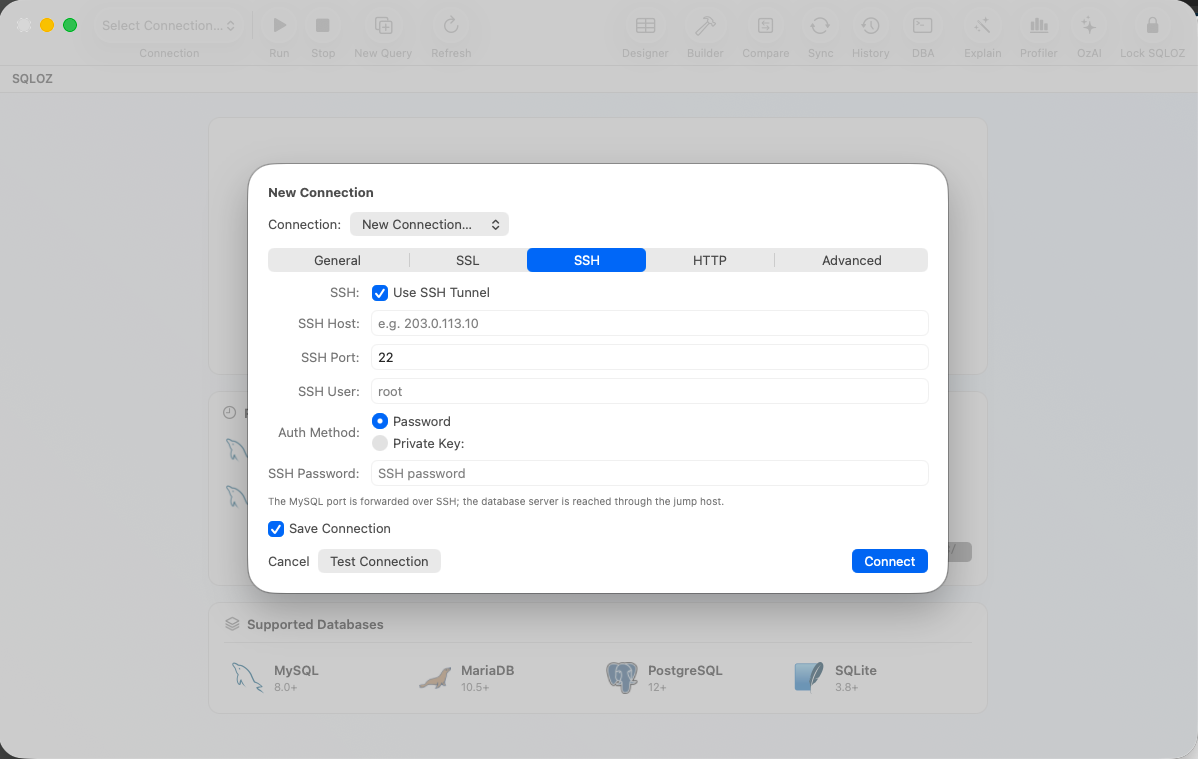
- Click New Connection and select MySQL.
- Configure the parameters:
- Host:
127.0.0.1(Avoidlocalhost, as macOS may attempt to connect via a Unix socket instead of TCP/IP!). - Port:
3306(or3307if customized). - User:
wp_user(orroot). - Password:
wp_password. - Database:
wordpress.
- Host:
- Click Test Connection $\rightarrow$ Connect.
3. Resolving Common Docker Connection Pitfalls
Error 1: Host '172.x.x.x' is not allowed to connect
MySQL checks user host permissions. If you created wp_user with @localhost, connections originating from Docker’s virtual gateway IP will be rejected. Ensure the user has wildcard host access:
GRANT ALL PRIVILEGES ON wordpress.* TO 'wp_user'@'%' IDENTIFIED BY 'wp_password';
FLUSH PRIVILEGES;
Error 2: Public Key Retrieval is not allowed
MySQL 8 defaults to caching_sha2_password authentication. In SQLOZ, this is handled automatically via native TLS handshakes and Apple Silicon crypto acceleration.
4. Inspecting WordPress Core Tables in SQLOZ
Once connected, SQLOZ gives you immediate visual access to WordPress data:
wp_optionsTable: Quickly search theoption_namecolumn forsiteurlandhometo update domain names when moving between local Docker and staging URLs.wp_posts&wp_postmeta: Filter custom post types, inspect WooCommerce product metadata, and edit corrupted serializations with visual data grids.- Visual Query Builder: Easily compose queries that join
wp_postsandwp_postmetavisually without writing verbose relational SQL.
Summary
You don’t need heavy web tools like phpMyAdmin to manage local Docker WordPress databases. By exposing your container ports and connecting via a native Swift client like SQLOZ, you enjoy sub-second query speeds, zero RAM waste, and effortless local debugging.
To learn more about containerized database workflows, read our guides on How to Connect Mac Database GUIs to Docker Containers and Solving Port 3306 and 5432 Conflicts on macOS.