
You don’t always need to write a SELECT * FROM orders WHERE ... ORDER BY ... LIMIT 50 query just to answer a straightforward business question. Whether you are a Customer Support Engineer tracking down a misplaced invoice, a Product Manager auditing feature adoption flags, or a developer sanity-checking migration records, typing repetitive SQL queries slows you down.
Furthermore, when dealing with large database tables containing millions of rows, firing off unindexed LIKE '%keyword%' queries in raw SQL can lock database tables and degrade production performance.
In this practical guide, we demonstrate how to inspect, search, and filter enterprise database tables seamlessly without writing a single line of SQL code.
The Limitations of Traditional SQL for Ad-Hoc Data Exploration
When investigating live data, the traditional SQL workflow introduces friction:
- Typing Overhead: Writing repeated
SELECT,WHERE,AND,OR,ORDER BYsyntax just to change a date range by one day is cumbersome. - Slow Pagination: Using
OFFSET 10000in SQL forces the database to scan and discard thousands of rows, causing queries to crawl. - Accidental Full Table Scans: A non-technical team member typing
WHERE email LIKE '%@gmail.com'on an unindexed table can spike CPU utilization to 100%.
The GUI Solution: Interactive Filtering with SQLOZ
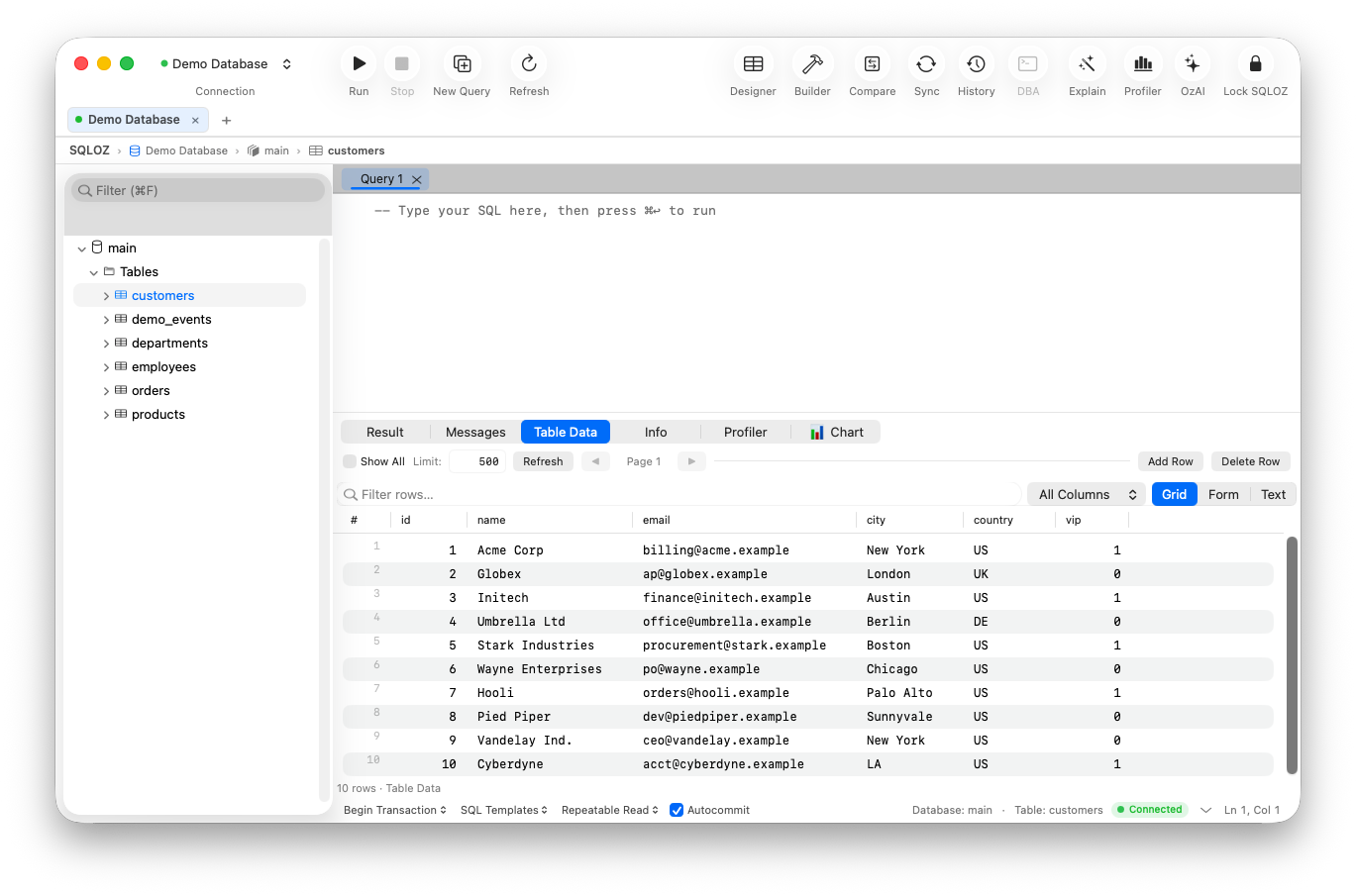
SQLOZ provides a native macOS Data Grid engineered specifically for high-speed exploration of multi-million-row tables.
1. Instant Global Quick Search (⌘F)
Need to find a user by email, ID, or phone number?
- Simply press ⌘F while viewing any table.
- Type your keyword in the floating search bar.
- SQLOZ instantly highlights matching cells in real time across the visible buffer without re-querying the database engine.
2. Multi-Condition Visual Filter Pills
Instead of composing nested SQL WHERE clauses, SQLOZ provides an intuitive filter bar:
- Click + Add Filter.
- Select your column from the dropdown (e.g.,
status). - Choose an operator (
equals,contains,starts with,greater than,is null,in list). - Enter your target value.
You can chain multiple filters together with one-click AND / OR logic toggles. SQLOZ automatically compiles these into efficient, SARGable background queries.
3. Click-to-Sort Column Headers
- Click any column header once to sort Ascending (A–Z / Low–High).
- Click again to sort Descending.
- Hold Shift + Click on a second column to perform multi-level sorting (e.g., sort by
statusfirst, then bycreated_atdescending).
4. Hide, Reorder, and Pin Columns
In large tables with 50+ columns (such as user tracking tables or analytics events):
- Drag column headers to reorder them to your liking.
- Right-click any column and select Pin to Left (ideal for keeping
idoremailvisible while scrolling horizontally through dozens of metadata fields). - Use the Column Visibility menu to uncheck bulky columns you don’t need to see.
How SQLOZ Handles Massive Tables Without Freezing
Many database tools choke when opening a table with 10 million rows because they attempt to load too many records into memory at once.
SQLOZ solves this through Virtualized In-Memory Streaming:
- Keyset Cursor Pagination: Instead of slow
OFFSETqueries, SQLOZ uses high-performance keyset pagination behind the scenes. - Apple Silicon Metal Acceleration: The table view recycles UI cells directly in GPU unified memory, allowing you to scroll through 500,000 cached records at a steady 120 FPS.
- Zero RAM Bloat: Even when browsing massive tables, SQLOZ maintains an ultra-lean memory footprint under 80MB.
Conclusion
Querying databases shouldn’t be reserved exclusively for command-line power users. With the right native Mac tools, anyone on your team can explore data, discover insights, and resolve customer issues in seconds.
Ready to explore your tables with speed and elegance?
Download SQLOZ for macOS and experience the most responsive data grid on the Mac.