
In modern cloud security best practices, your Amazon RDS PostgreSQL database is never given a public IP address. Instead, it is deployed inside an Isolated Private Subnet within your AWS Virtual Private Cloud (VPC), protected by Security Groups that only accept inbound connections from within the internal network.
To access your private RDS cluster from your local Mac for debugging or administrative queries, you must connect through an EC2 Bastion Host (Jump Box) located in a public subnet.
In this step-by-step tutorial, we cover how to configure your AWS security groups and establish an encrypted connection using SQLOZ on macOS.
1. The AWS VPC Architecture Blueprint
┌──────────────┐         Encrypted SSH (Port 22)         ┌──────────────┐      Internal VPC      ┌──────────────┐
│  Your Mac    │ ═══════════════════════════════════════►│ EC2 Bastion  │ ──────────────────────►│ AWS RDS DB   │
│ (Local GUI)  │         Ed25519 / RSA Key               │ (Public Sub) │      Port 5432         │ (Private Sub)│
└──────────────┘                                         └──────────────┘                        └──────────────┘
AWS Security Group Requirements:
- EC2 Bastion Security Group: Inbound rule allowing port
22(SSH) from your Mac’s external IP address. - RDS Security Group: Inbound rule allowing port
5432(PostgreSQL) originating strictly from the Bastion Security Group ID (e.g.,sg-0a1b2c3d4e5f).
2. Setting Up the Connection in SQLOZ
While command-line SSH tunnels require running ssh -N -L ... in a separate terminal window, SQLOZ manages the entire tunnel lifecycle natively.
Step 1: Enter Your Private RDS Credentials
- In SQLOZ, click New Connection ➔ PostgreSQL.
- Host: Enter your AWS RDS private endpoint (e.g.,
production-db.c123456.us-east-1.rds.amazonaws.com). - Port:
5432. - User & Password: Your PostgreSQL master or application credentials.
- Database: Your target database name.
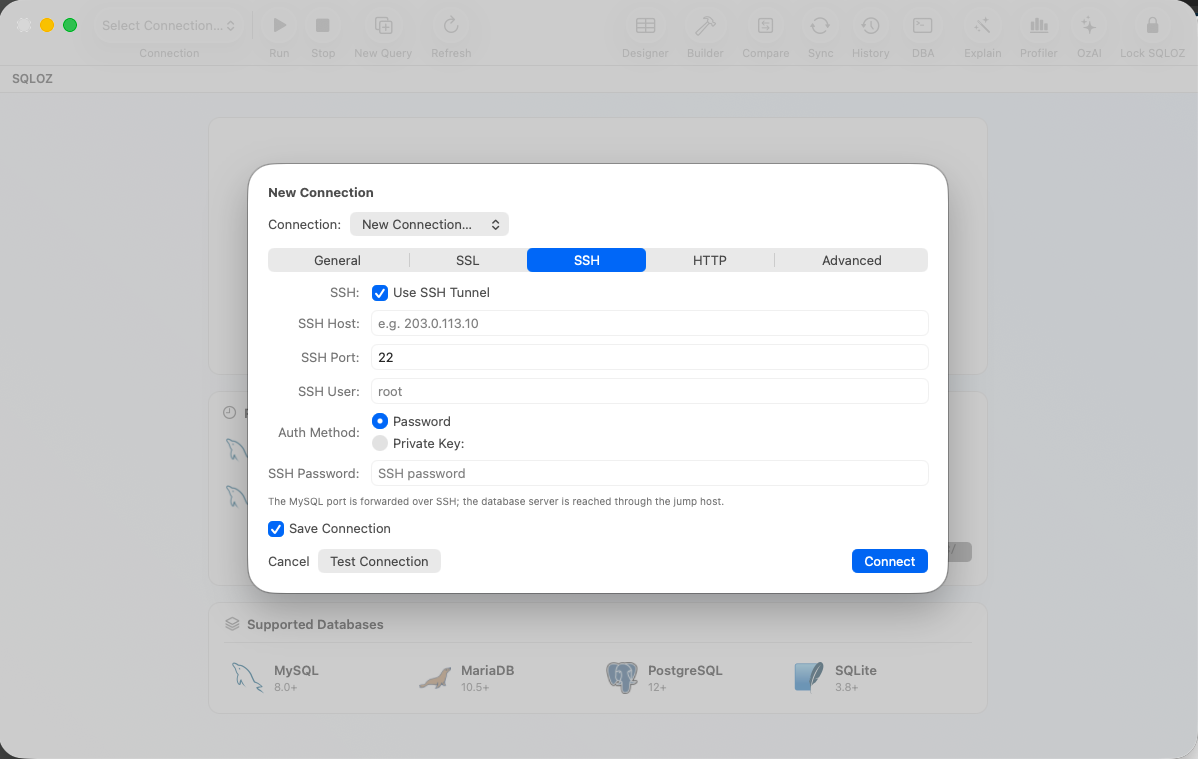
Step 2: Configure the SSH Tunnel Tab
- Switch to the SSH Tunnel tab and toggle Use SSH Tunnel ON.
- SSH Host: Enter the Public IPv4 or Public DNS of your EC2 Bastion host.
- SSH User:
ec2-user(for Amazon Linux),ubuntu(for Ubuntu AMI), or your custom SSH username. - Authentication: Select SSH Key File and choose your
.pemor.id_rsakey file. - SQLOZ integrates with the macOS Keychain to cache key passphrases securely.
Step 3: Test and Connect
Click Test Connection. SQLOZ will:
- Establish an encrypted SSH tunnel to the EC2 Bastion.
- Route a secure socket over the internal AWS network to your private RDS endpoint.
- Authenticate with PostgreSQL and open your workspace.
3. Environment Protection with Production Tags
When tunneling into AWS RDS production clusters, accidental destructive queries can be disastrous.
In SQLOZ:
- Assign a Red Production Badge to your RDS connection profile.
- SQLOZ automatically activates its Safety Gate, intercepting and warning you before executing any
UPDATEorDELETEquery missing aWHEREclause.
Summary
Connecting to private AWS RDS instances doesn’t require juggling fragile terminal scripts or compromising security by making databases publicly accessible.
With SQLOZ, Mac developers get an enterprise-grade SSH bastion tunnel manager integrated directly into a blazing-fast native database client.
Download SQLOZ for macOS and connect to your AWS RDS databases securely today.