
Deploying PostgreSQL on an Ubuntu or Debian Linux VPS (DigitalOcean Droplet, Linode, AWS EC2, or Hetzner) is one of the most common setups for web backends.
However, out-of-the-box, PostgreSQL on Linux is tightly locked down:
- It only listens on
localhost(listen_addresses = 'localhost'). - Its client authentication configuration file (
pg_hba.conf) rejects connections from external IP addresses.
Rather than modifying postgresql.conf and pg_hba.conf to expose your database port to the public internet, the secure, industry-standard approach is connecting through an SSH Tunnel.
In this guide, we show you how to connect your Mac directly to PostgreSQL on your Linux VPS using SQLOZ.
1. Why You Shouldn’t Open Port 5432 to the Public Internet
To allow direct public TCP connections, you would have to:
- Edit
/etc/postgresql/16/main/postgresql.confand setlisten_addresses = '*'. - Edit
/etc/postgresql/16/main/pg_hba.confand addhost all all 0.0.0.0/0 scram-sha-256. - Open port
5432in UFW (sudo ufw allow 5432/tcp).
The Danger: Port 5432 is constantly scanned by automated brute-force botnets. Any unpatched PostgreSQL vulnerability or weak password leaves your database vulnerable to total exfiltration or ransomware.
2. The Clean, Secure Solution: SSH Tunneling in SQLOZ
When you connect via an SSH Tunnel, traffic travels over your existing encrypted SSH port (22), and PostgreSQL perceives the connection as originating locally from 127.0.0.1. You don’t have to change a single line of PostgreSQL configuration!
Step 1: Configure PostgreSQL Credentials
- In SQLOZ, click New Connection ➔ PostgreSQL.
- Host:
127.0.0.1(the VPS’s internal loopback). - Port:
5432. - User & Password: Your PostgreSQL credentials (e.g.
postgresor application user). - Database: Your target database name.
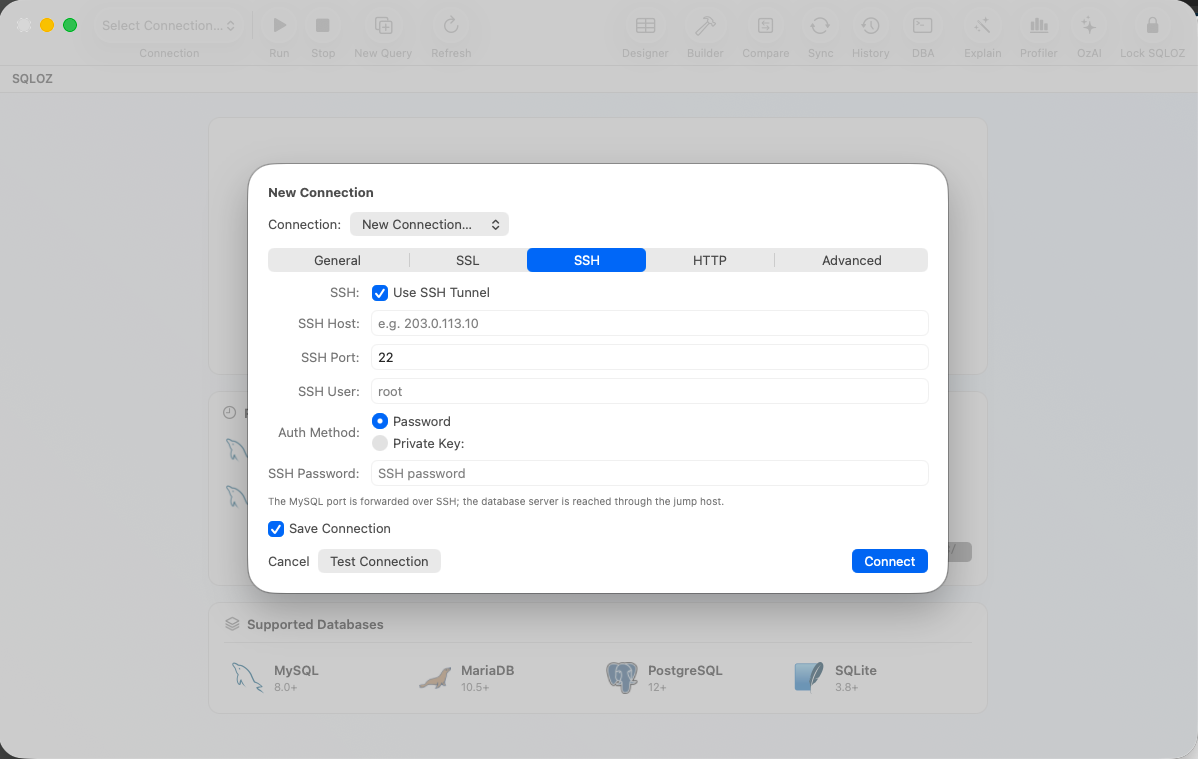
Step 2: Configure the SSH Tunnel Tab
- Switch to the SSH Tunnel tab and toggle Use SSH Tunnel ON.
- SSH Host: Your Linux VPS public IP address or domain.
- SSH Port:
22(or custom SSH port). - SSH User:
rootor your sudoer username. - Authentication: Select SSH Key File and choose your private key (
~/.ssh/id_ed25519or~/.ssh/id_rsa).
Step 3: Test and Connect
Click Test Connection. SQLOZ negotiates the encrypted SSH handshake, forwards the local socket, and mounts your remote PostgreSQL database instantly.
3. Benefits of Native macOS Management with SQLOZ
Once connected to your Linux VPS in SQLOZ:
- Interactive Visual Query Builder: Design multi-table queries without writing raw SQL.
- Schema Compare & Sync: Compare your remote production schema against your local development database.
- Keychain Security: All SSH key passphrases and database passwords are encrypted inside the macOS Keychain.
Summary
Never expose PostgreSQL port 5432 to public traffic.
By leveraging SQLOZ’s native SSH tunnel integration, you can manage PostgreSQL on any Linux VPS with maximum security and Apple Silicon performance.
Download SQLOZ for macOS and connect to your Linux VPS databases in seconds.