
Converting a remote or local MySQL database to a lightweight SQLite database is an indispensable task for Mac developers. Whether you want to package local mock data for an iOS/macOS application, run ultra-fast offline unit tests, or test a client project on an airplane without running a heavy Docker daemon, SQLite is the ultimate single-file embedded database.
However, attempting to convert MySQL to SQLite using traditional methods is notoriously frustrating. Piping mysqldump into regex scripts frequently fails because MySQL and SQLite have fundamentally incompatible dialect rules:
- MySQL’s
AUTO_INCREMENTsyntax breaks SQLite’s rigidINTEGER PRIMARY KEY AUTOINCREMENTrequirement. - MySQL engine directives (
ENGINE=InnoDB,DEFAULT CHARSET=utf8mb4) trigger immediate syntax errors in SQLite. - SQLite’s dynamic type affinity system handles
TINYINT(1),DATETIME, andENUMvalues very differently from MySQL’s structured storage engine.
In this practical guide, we walk through the traditional manual conversion workflow and demonstrate how to perform an instant, zero-downtime conversion using SQLOZ, the premier native macOS database management client.
1. What Makes MySQL to SQLite Conversion Difficult?
Before converting records, understanding the dialect disparities between MySQL (client-server RDBMS) and SQLite (serverless library) will prevent hours of debugging.
A. Primary Key and Auto-Increment Rules
In MySQL, any numeric column can be indexed as an auto-incrementing key:
-- MySQL syntax:
CREATE TABLE users (
    id INT UNSIGNED NOT NULL AUTO_INCREMENT,
    email VARCHAR(255) NOT NULL,
    PRIMARY KEY (id)
);
In SQLite, an auto-incrementing column must be declared explicitly as an INTEGER PRIMARY KEY (case-sensitive signed 64-bit integer). Using INT or BIGINT instead of INTEGER causes SQLite to treat it as a generic integer affinity without automatic rowid incrementation:
-- Valid SQLite syntax:
CREATE TABLE users (
    id INTEGER PRIMARY KEY AUTOINCREMENT,
    email TEXT NOT NULL
);
B. Date and Time Representation
MySQL enforces strict DATETIME (YYYY-MM-DD HH:MM:SS) and TIMESTAMP formats. SQLite does not have a dedicated date/time storage class; it stores timestamps as TEXT (ISO-8601 strings), REAL (Julian day numbers), or INTEGER (Unix epoch seconds). Failing to normalize datetime formats during migration results in broken application queries.
For a comprehensive breakdown of edge cases, read our companion guide on Handling Data Type Incompatibilities When Converting MySQL to SQLite.
2. The Traditional Method: Python Scripts and Regex Hacks
Historically, developers turned to open-source Python scripts (such as mysql2sqlite.sh or Python ETL scripts).
# Typical command-line pipeline:
mysqldump -u root -p --skip-extended-insert --compact my_database > dump.sql
./mysql2sqlite.sh dump.sql | sqlite3 output.db
The Breaking Points:
- Memory Exhaustion: For databases larger than 2GB, shell pipes and Python string buffers frequently crash or hang your Mac.
- Missing Constraints: Complex foreign keys, default timestamp functions (
NOW(),CURRENT_TIMESTAMP), and multi-column unique constraints are often stripped or mangled. - Encoding Glitches: Multi-byte UTF-8 emojis (such as
utf8mb4) can get truncated into invalid byte sequences.
3. The Modern Native Solution: Instant Migration with SQLOZ
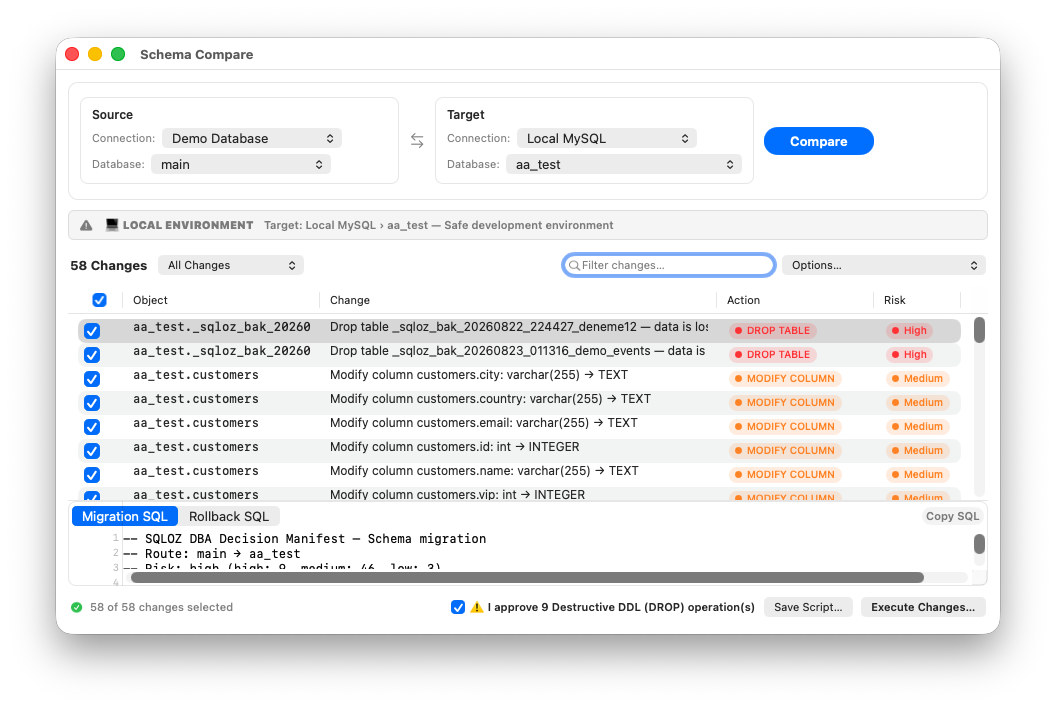
SQLOZ is a native macOS database client written in Swift and Metal, engineered specifically for Apple Silicon. It eliminates the need for intermediate dump files, Python runtimes, or command-line gymnastics.
Step-by-Step Conversion in SQLOZ:
Step 1: Open Your MySQL Connection
Launch SQLOZ and connect to your source MySQL instance (via direct socket, SSL, or an encrypted SSH Tunnel).
Step 2: Select Your Tables or Entire Schema
In the left Object Browser, right-click the database or specific tables you want to convert, and select Export / Migrate Database…
Step 3: Choose SQLite as the Target Dialect
- Select Target: New SQLite Database.
- Choose where to save the
.sqliteor.dbfile in macOS Finder (e.g., in your app’s local assets folder or test directory).
Step 4: Intelligent Automated Type Mapping
SQLOZ’s built-in AST migration engine automatically maps data types:
- Converts
INT AUTO_INCREMENTtoINTEGER PRIMARY KEY AUTOINCREMENT. - Rewrites MySQL
TINYINT(1)into cleanINTEGERboolean values (0/1). - Translates MySQL
DATETIMEto standardized ISO-8601TEXTtimestamps. - Strips incompatible MySQL engine annotations (
ENGINE=InnoDB,COLLATE=...) without touching your data integrity.
Step 5: High-Speed In-Memory Streaming
Click Start Migration. SQLOZ streams rows directly from MySQL memory buffers through Apple Silicon hardware acceleration into SQLite transactions (PRAGMA synchronous = OFF; BEGIN TRANSACTION;). Even a 500,000-row table converts in seconds.
4. Validating Your Converted SQLite Database
Once migration completes, you can double-click the newly created SQLite file directly inside SQLOZ to inspect your data:
- Verify Row Counts: Compare the row count in the Data Grid against your source MySQL table.
- Inspect Relationships: Open the Schema Designer to confirm all primary and foreign keys mapped accurately.
- Execute Test Queries: Test your backend application queries in the SQL Editor to ensure zero syntax discrepancies.
Summary
Migrating from MySQL to SQLite doesn’t have to mean wrestling with broken shell scripts and corrupt dump files. By utilizing SQLOZ, Mac developers gain an ultra-fast, visually verified, and native conversion workflow that preserves data integrity on Apple Silicon.
Ready to convert your databases with one click?
Download SQLOZ for macOS and experience effortless cross-database migration today.